

Invite your team
- Who
- Owners
- Where
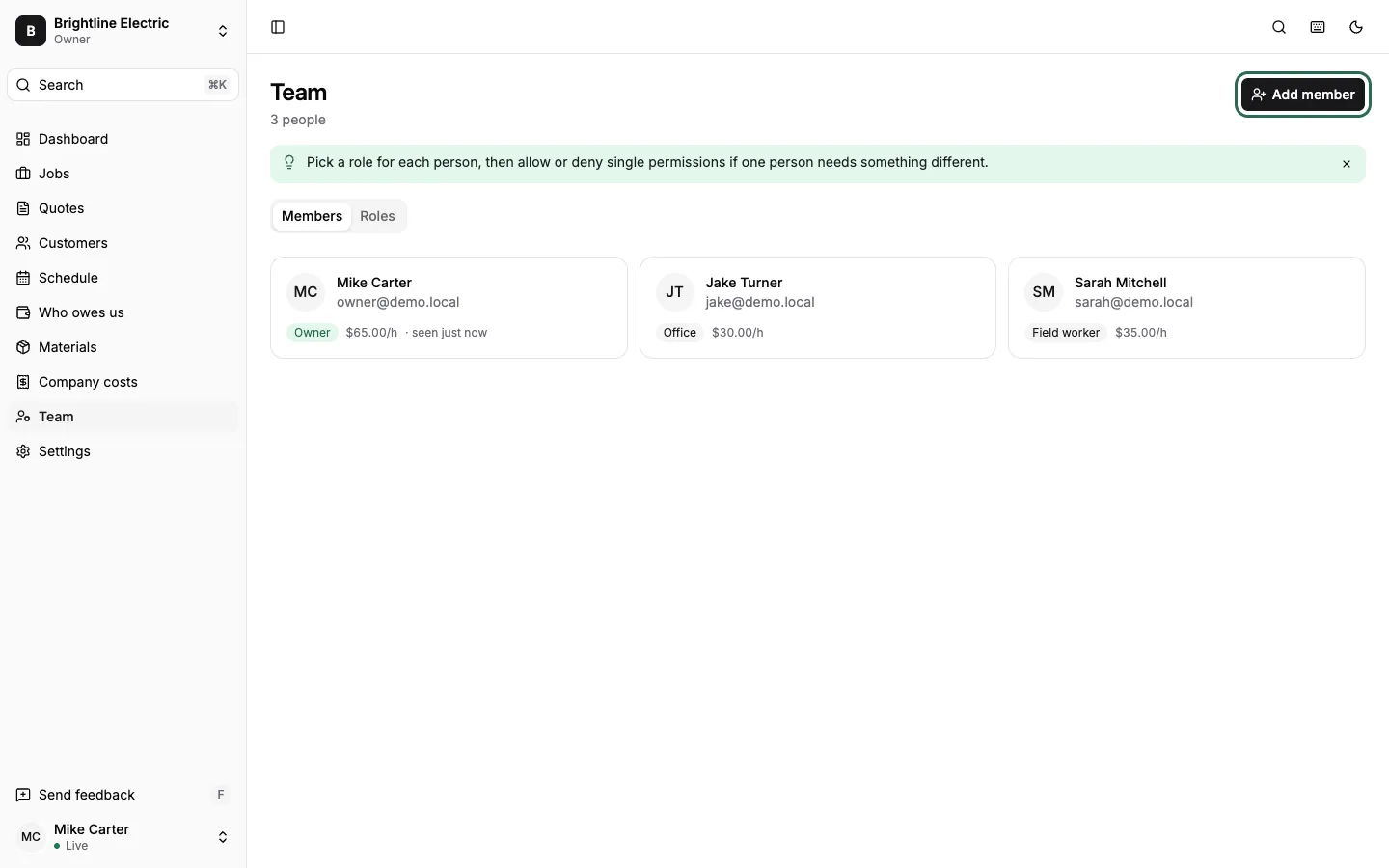
- Team → Add member.
Invite the people who work with you. Each one gets a role that decides what they see: a field worker adds materials and hours on their jobs and never sees a price.
How to invite someone
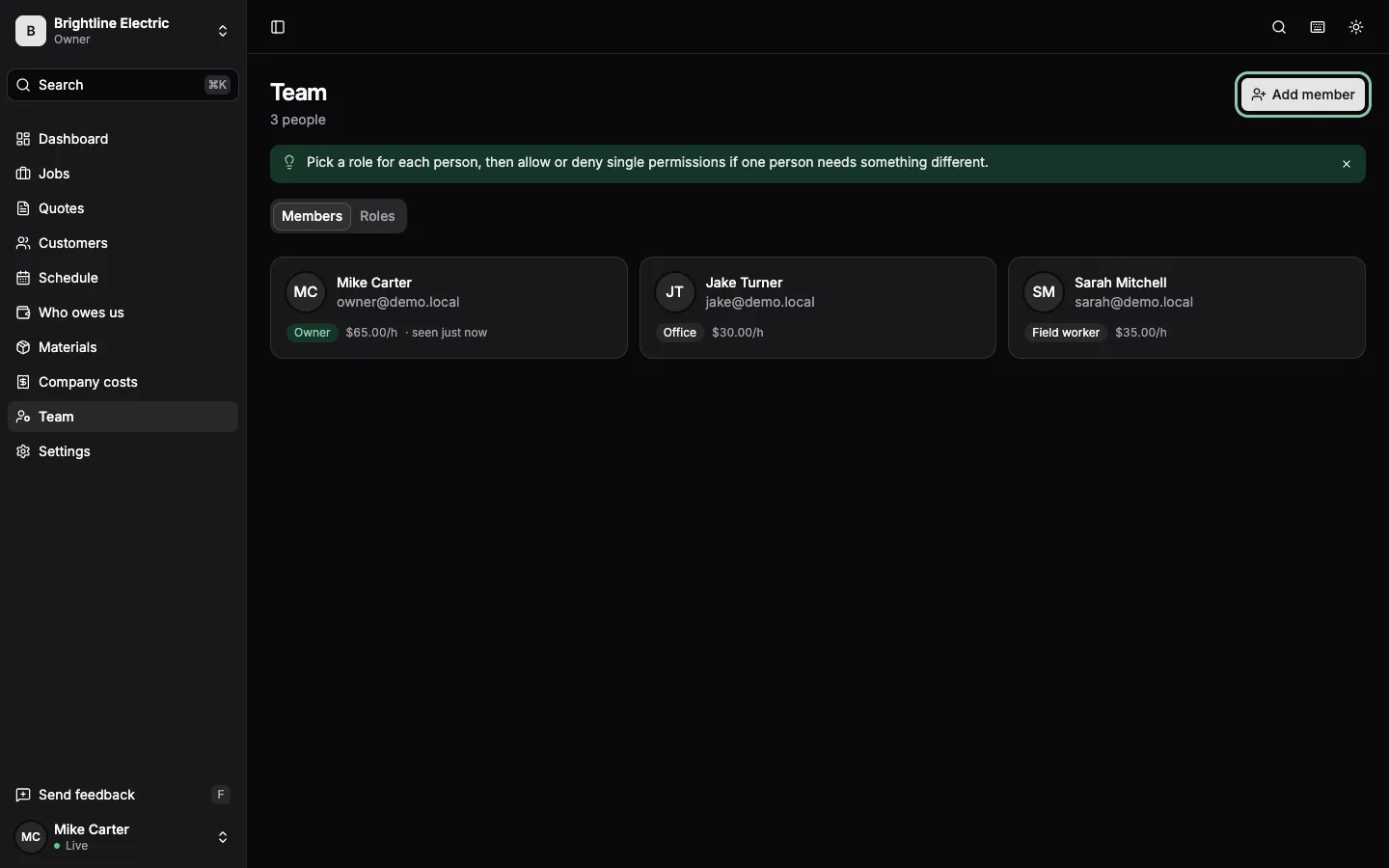
Section titled “How to invite someone”- Open Team (on a phone, it’s under More) and click Add member.
- Type their Name and Email. Keep Email an invite to send them a link, or choose Temporary password to
give them one yourself. Pick a Role; each one says what it’s for. Add their Hourly rate if they log hours:
it’s what their time costs the job.
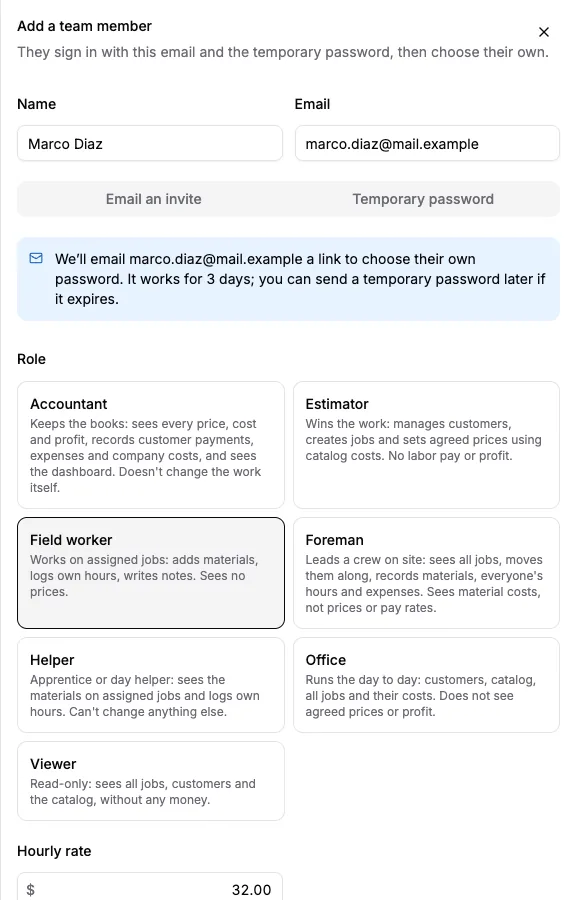
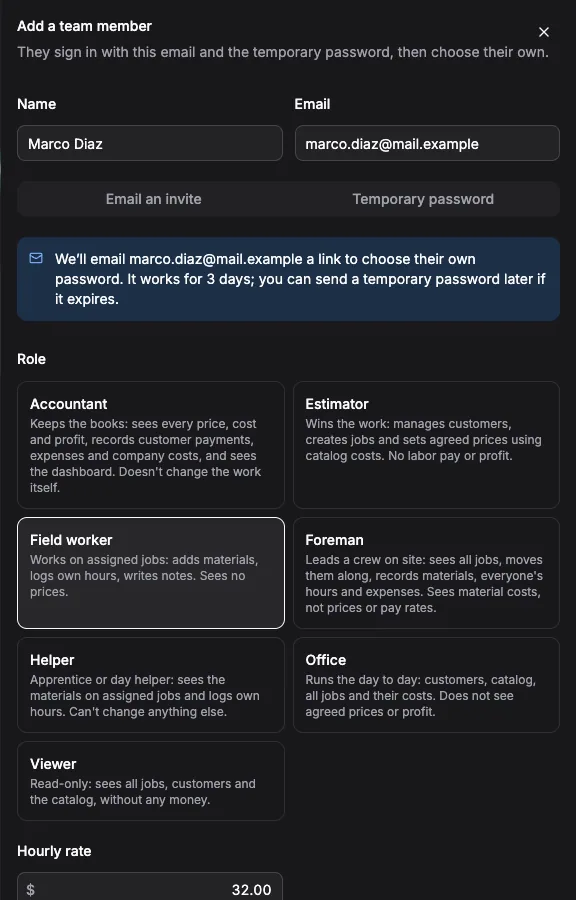
- Below, What … can see and do shows the role in plain words. You can allow or hide single things for this person. Click Add member.
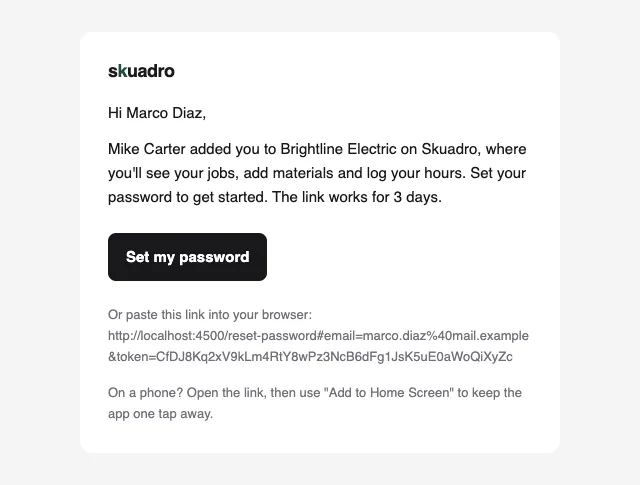
They get this email:
What they do
Section titled “What they do”- They open the link (it works for 3 days) and Choose a password, then Save and sign in.

- They land on their jobs. The first time, they’re asked to accept the Terms and Privacy policy. When you put them on a
job, it shows up here.
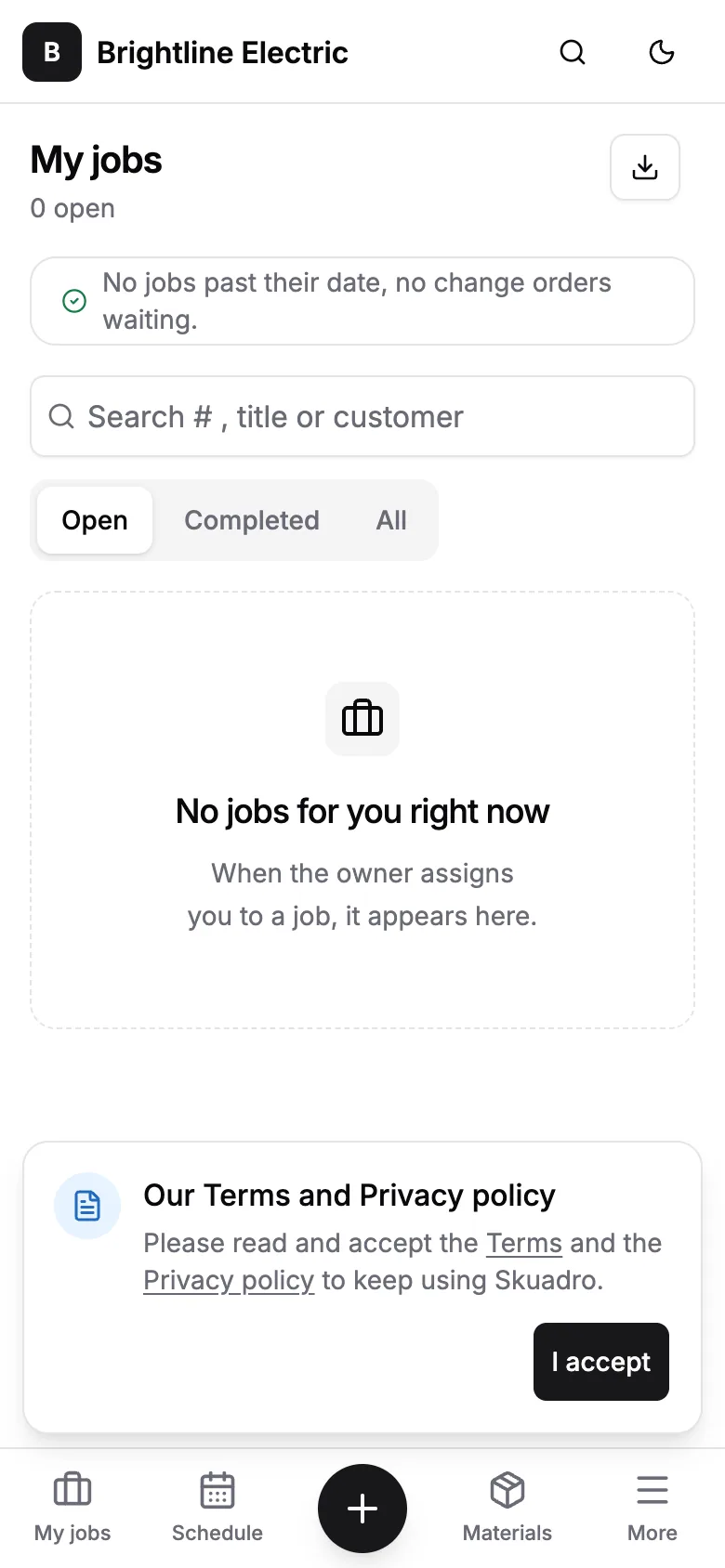
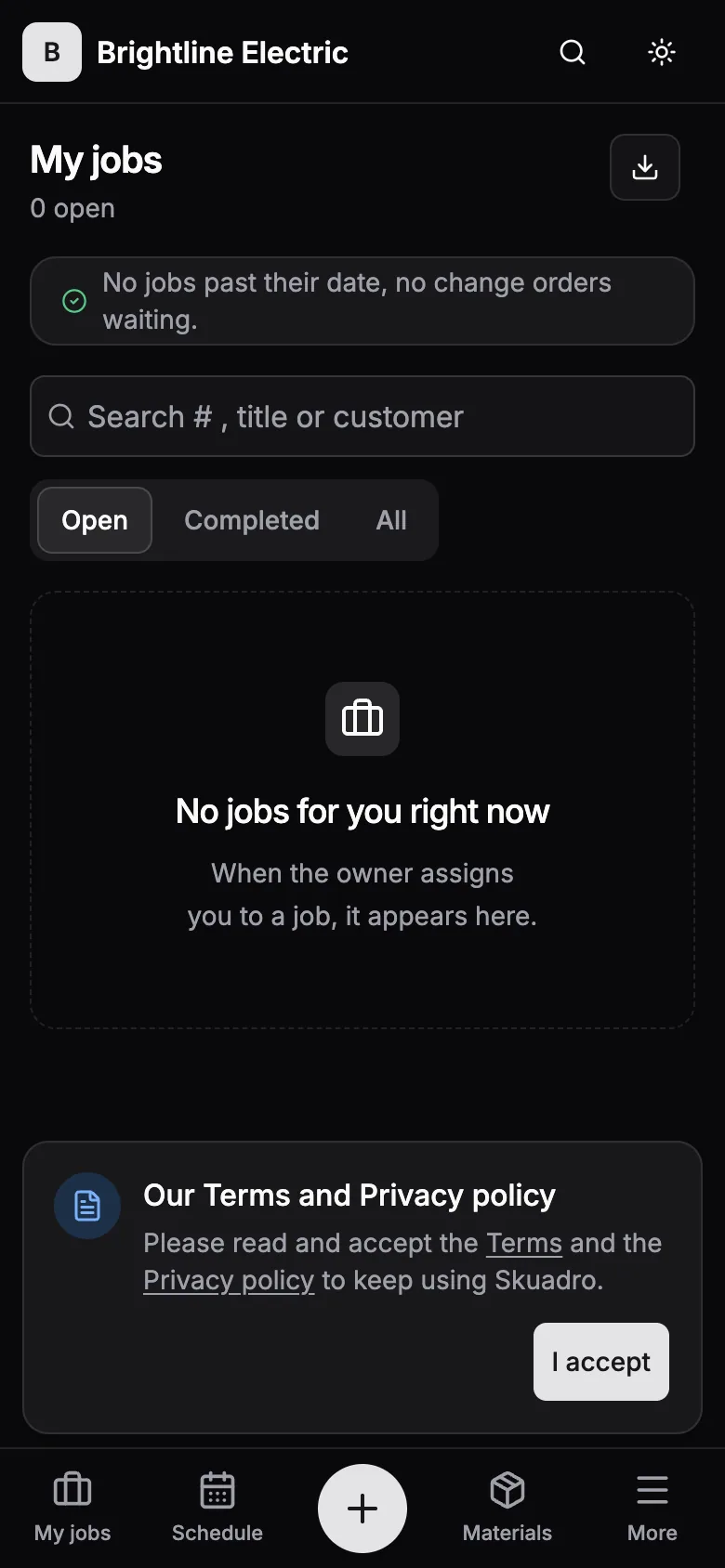
Send them the page for your crew, and ask them to add Skuadro to their home screen.
Good to know
Section titled “Good to know”- Temporary password: share it in person or by message. They choose their own when they first sign in.
- Link expired? On the sign-in page, Forgot password sends a new one, or give them a temporary password.
- Up to 15 people, you included. No fee per person.
- If the email already has a Skuadro account, they’re simply added to your team.
- Roles: Field worker, Helper, Foreman, Office, Estimator, Accountant and Viewer are ready to use, and you can change them under Team → Roles. Changes apply to the person’s very next action.
- To stop someone signing in, open them in Team and turn off Can sign in: they’re signed out everywhere.