

Your first job in 10 minutes
- Who
- Owners
- Where
- skuadro.com → Start free, then Quotes, the job and its invoice.
Follow one job from start to finish: a quote for a customer, the job it becomes, the invoice, and the profit. It takes about ten minutes, and afterwards you know your way around.
You need: an email address and a computer or phone. No card.
1. Create your company
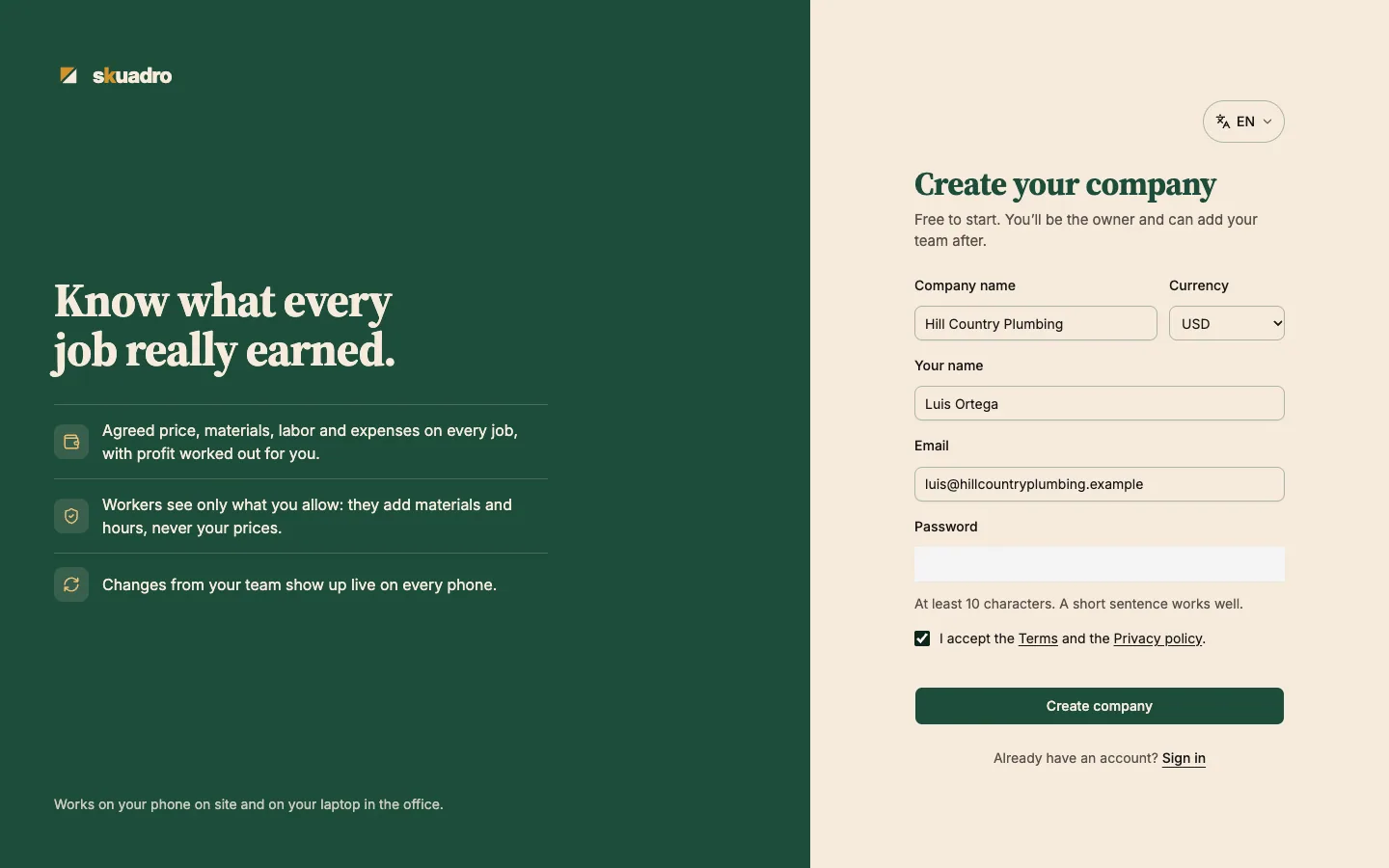
Section titled “1. Create your company”Go to skuadro.com and choose to start. Fill in your Company name, Currency, Your name, Email and a Password (at least 10 characters), accept the Terms and click Create company. You’re signed in straight away; there’s no email to confirm.
2. Skip or take the tour
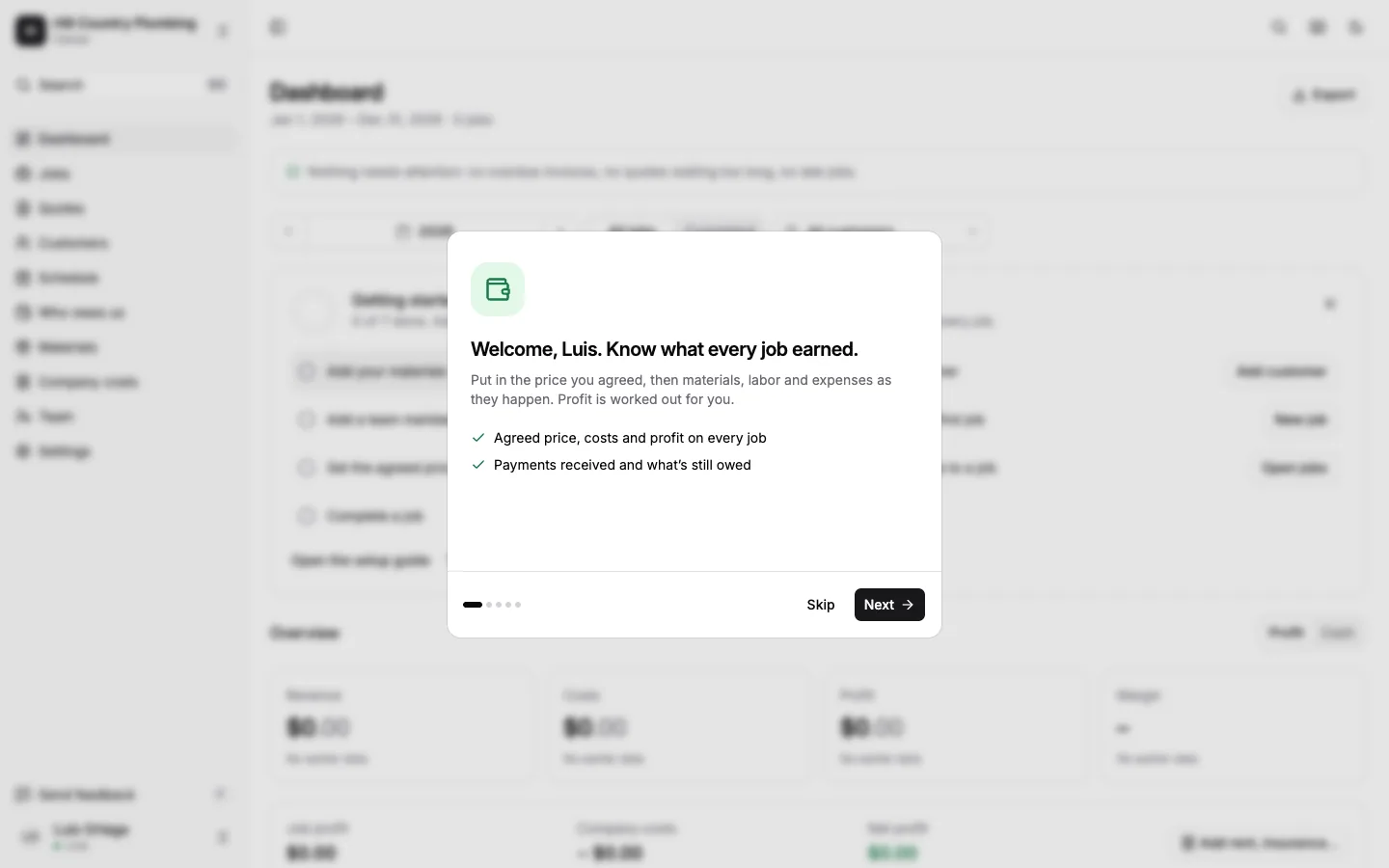
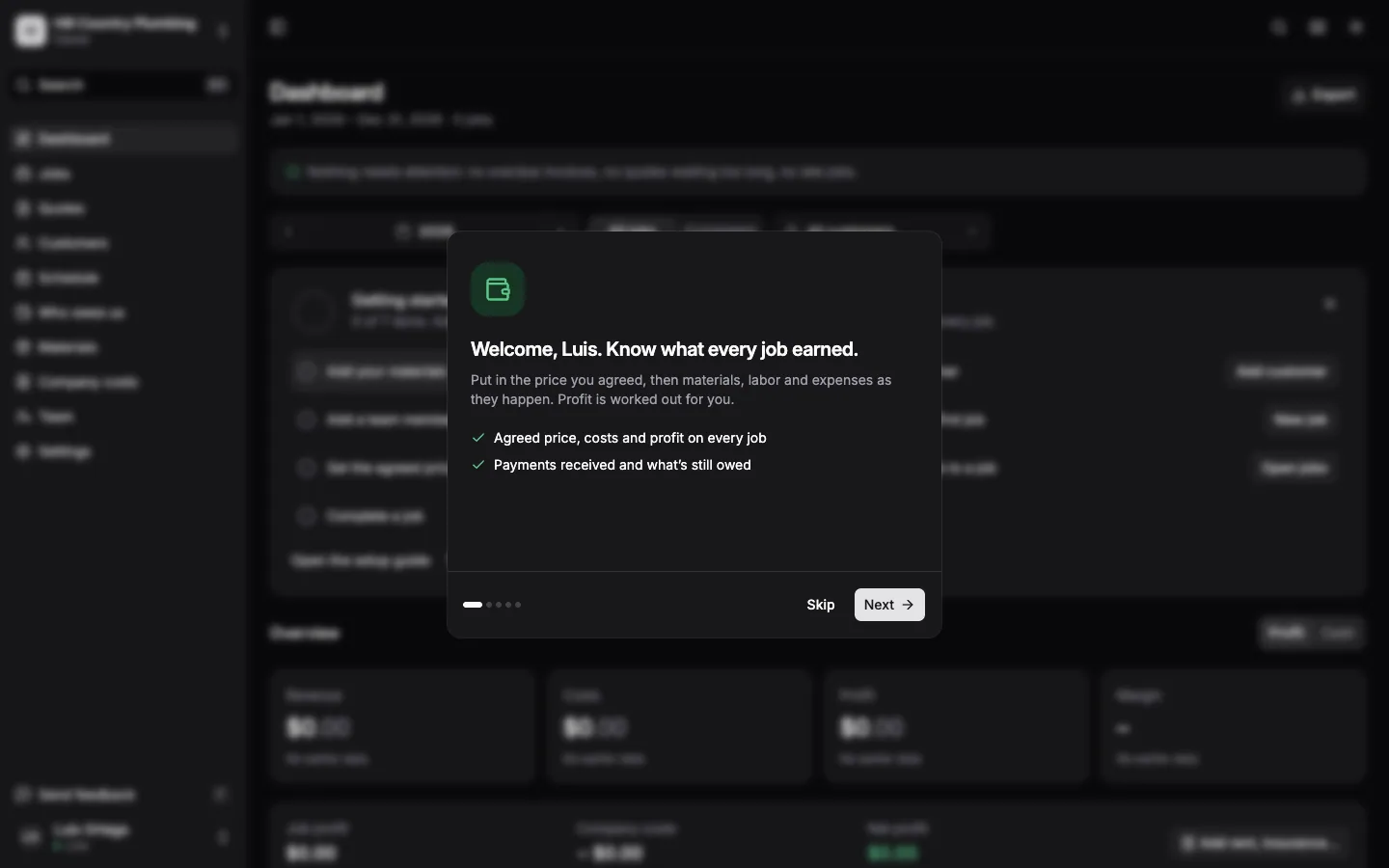
Section titled “2. Skip or take the tour”A short welcome tour opens. Click Next to read it, or Skip. At its end, Set up my company offers three quick steps: pick your trade to get a starter materials list, add a first customer, add your team. Everything can wait; the Getting started list on your dashboard keeps track.
3. Write a quote
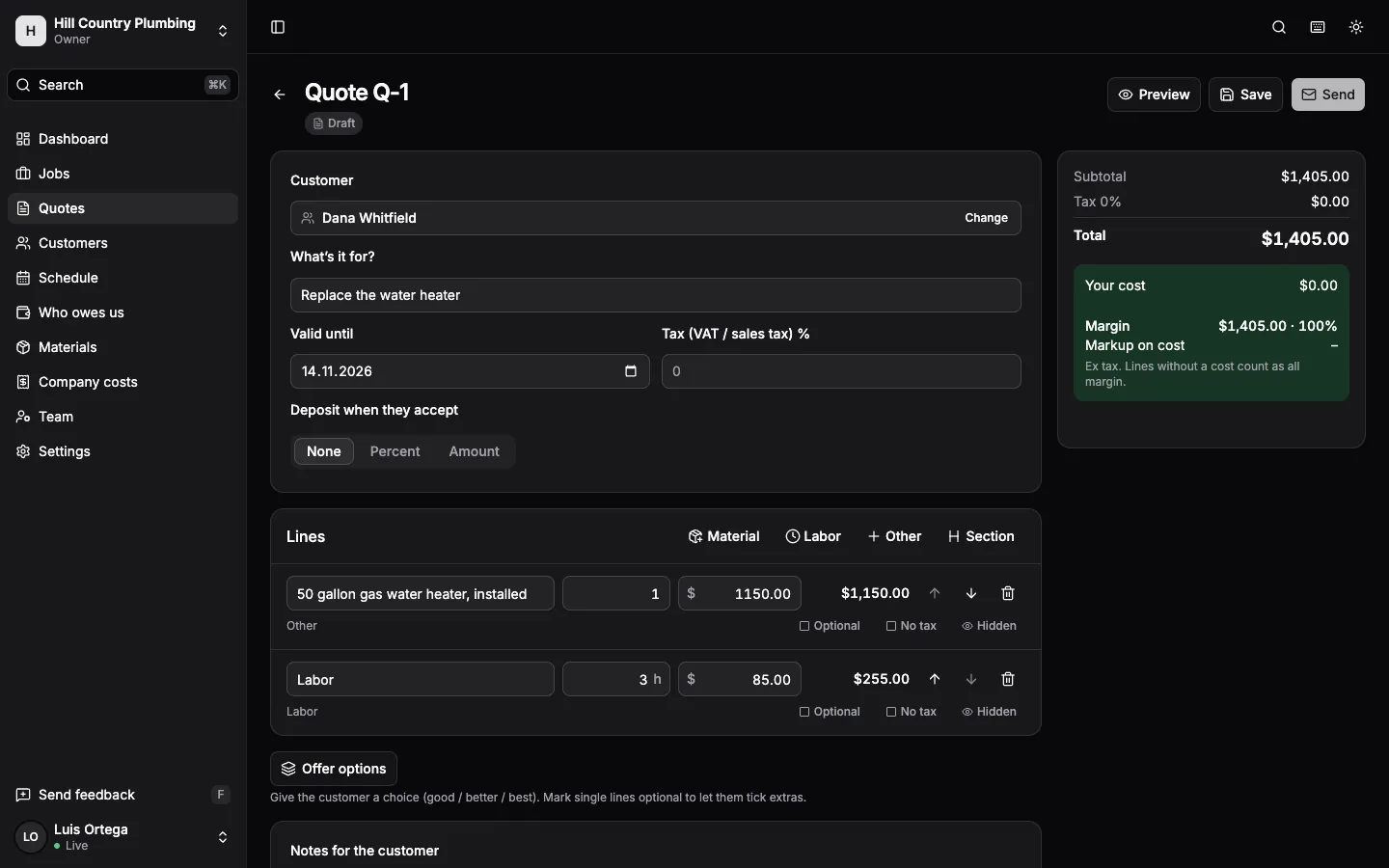
Section titled “3. Write a quote”Open Quotes and click New quote.
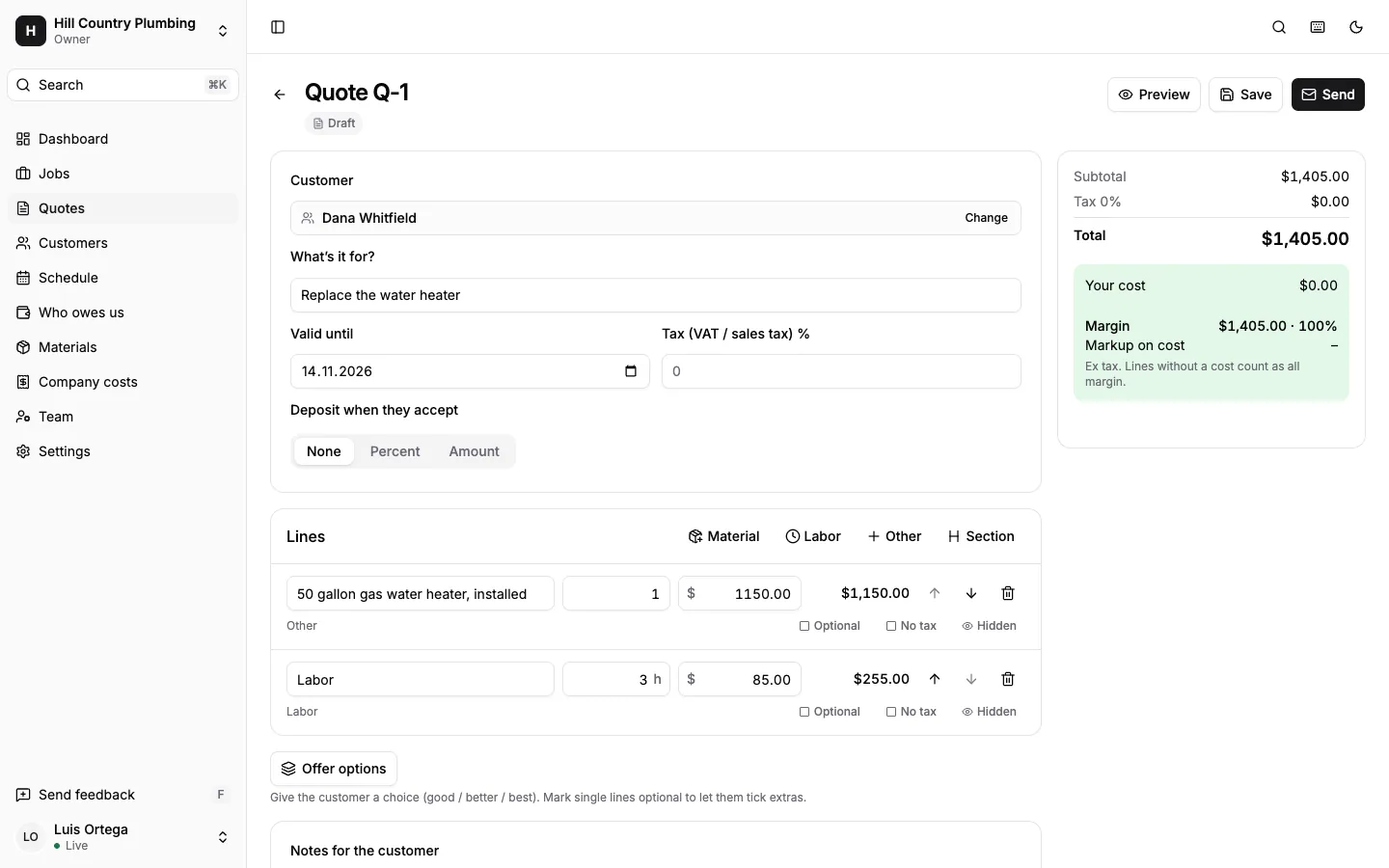
- Customer: search, or click New customer, type the name (and phone, if you like) and Add customer.
- What’s it for? A short title, like “Replace the water heater”.
- Lines: Material adds from your catalog, Labor adds hours, Other anything else. Type a description, the quantity and the price of each.
Click Save. On the right you see the total, and your margin once lines have costs.
4. Send it, and record the yes
Section titled “4. Send it, and record the yes”Click Send: Email it to the customer, or Just make the link and send it yourself. Your customer can accept and sign on the link. If they say yes on the phone instead, click They said yes: make the job.
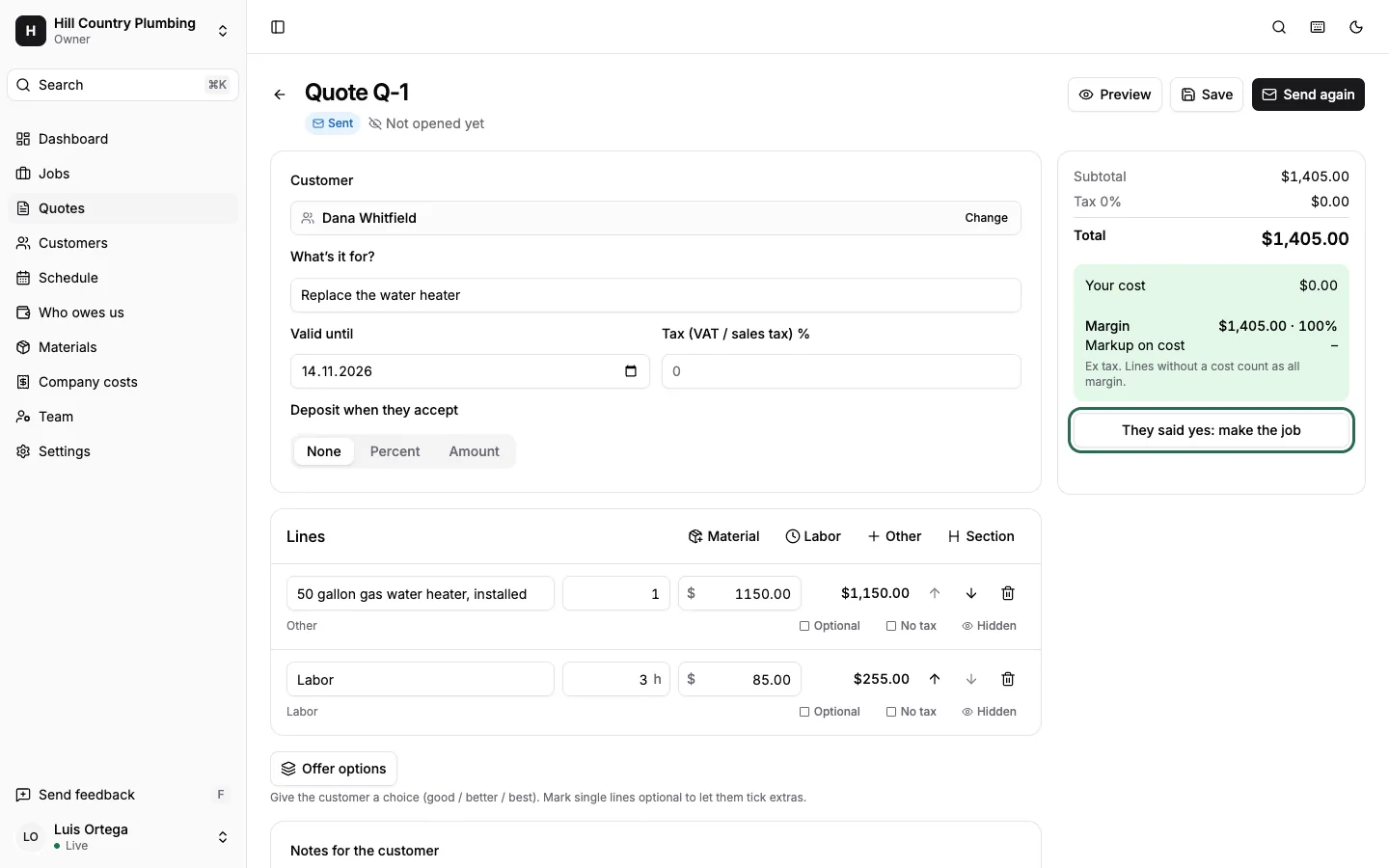
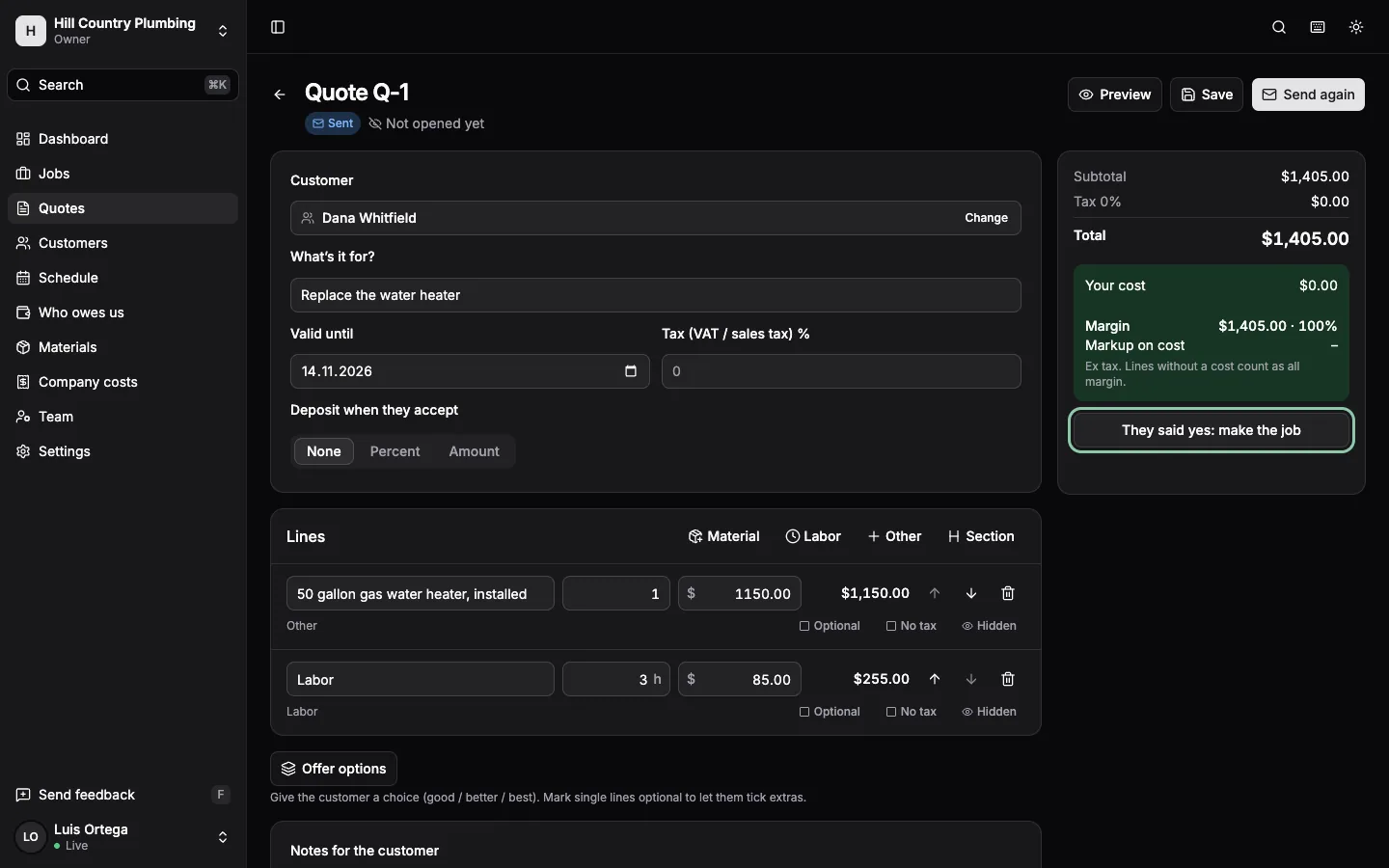
The quote becomes job #1, with the agreed price from the quote. Open it with the Job #1 link.
5. Do the job
Section titled “5. Do the job”On the job:
- Click Start job when the work begins.
- Add what it took: Materials → Add (a material that isn’t in your catalog yet: type its name, its unit and its cost), and Labor → Log hours.
- Click Mark completed when it’s done.
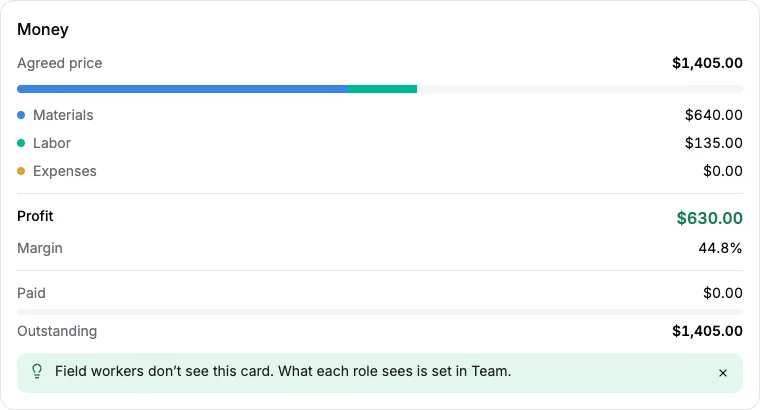
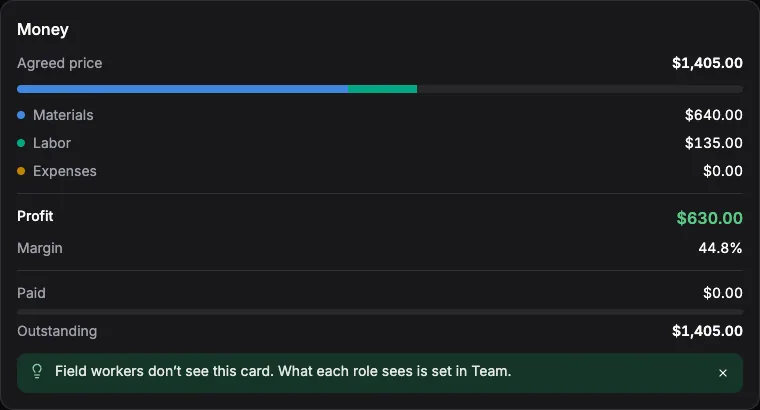
The Money card shows the agreed price, the costs, the Profit and the Margin, as you go.
6. Invoice it
Section titled “6. Invoice it”The first time, go to Settings → Invoices, pick your Country, add your Address and How to pay, and click Save invoice details. Then, back on the job, click Invoice this job and Issue invoice.
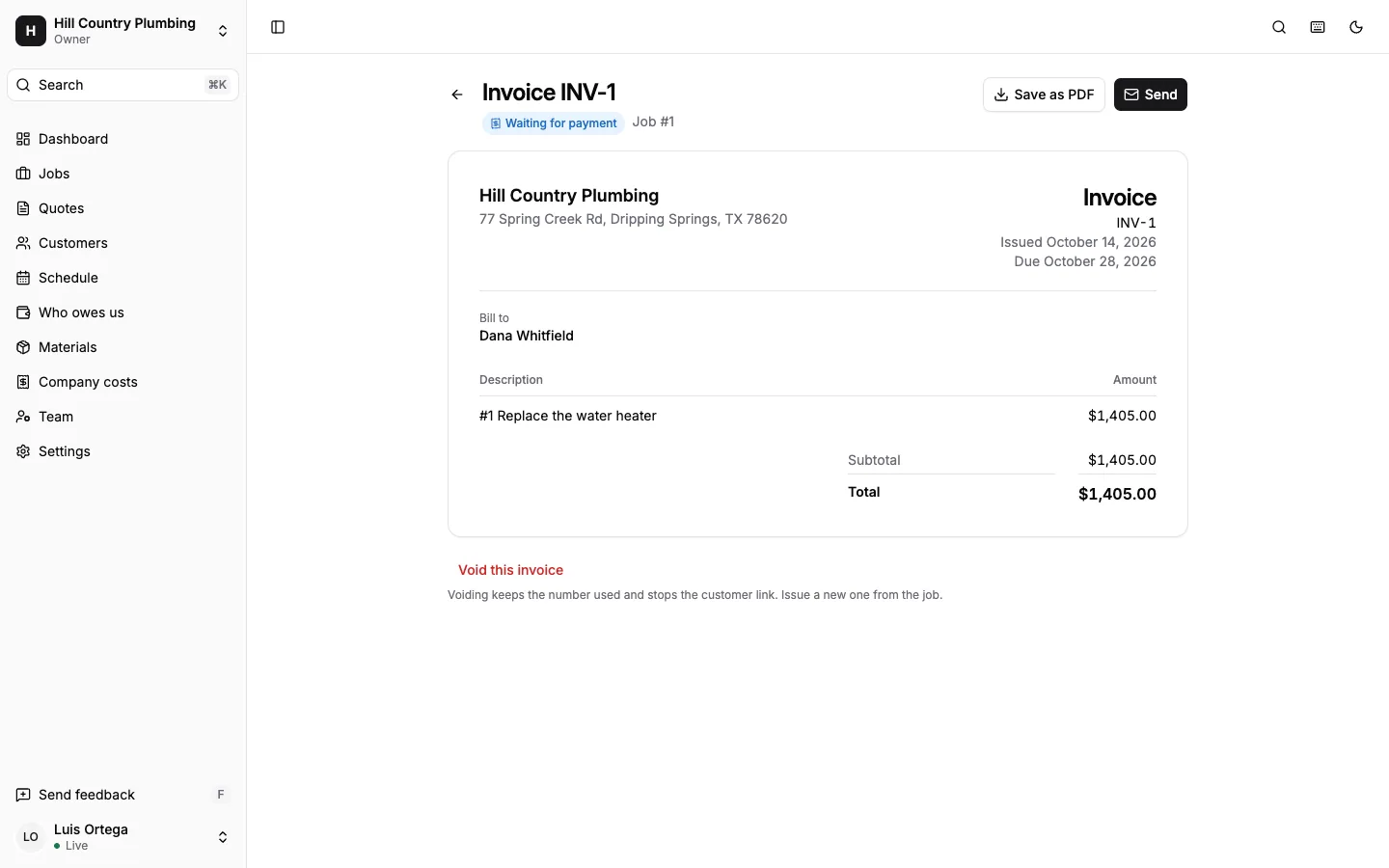
Click Send to email it or share the link (more). When the money comes in, record it on the job (how).
What’s next
Section titled “What’s next”- Invite your team so they add materials and hours from their phones.
- Install Skuadro on your phone.
- Want to look around a full company first? Before you add anything of your own, the dashboard’s Getting started list offers Try it with sample data: example customers, materials and jobs, cleared again with Remove the sample data.