

Invoice every finished job at once
- Who
- Owners
- Where
- Jobs → Invoice finished jobs (also on Who owes us, and in Needs attention on the dashboard).
All the finished jobs you haven’t billed yet, invoiced together, each at its agreed price.
Why it’s there
Section titled “Why it’s there”Billing is easy to put off after a busy week. This turns “I’ll do the invoices on Friday” into one click, and nothing finished is left unbilled.
Who sees it
Section titled “Who sees it”Owners, and people whose role lets them set prices (Estimator). Invoicing needs your country set in Settings → Invoices first (how).
How to use it
Section titled “How to use it”- On Jobs, click Invoice finished jobs. The same button is on Who owes us, and the dashboard’s Needs
attention tells you when finished jobs are waiting to be invoiced.
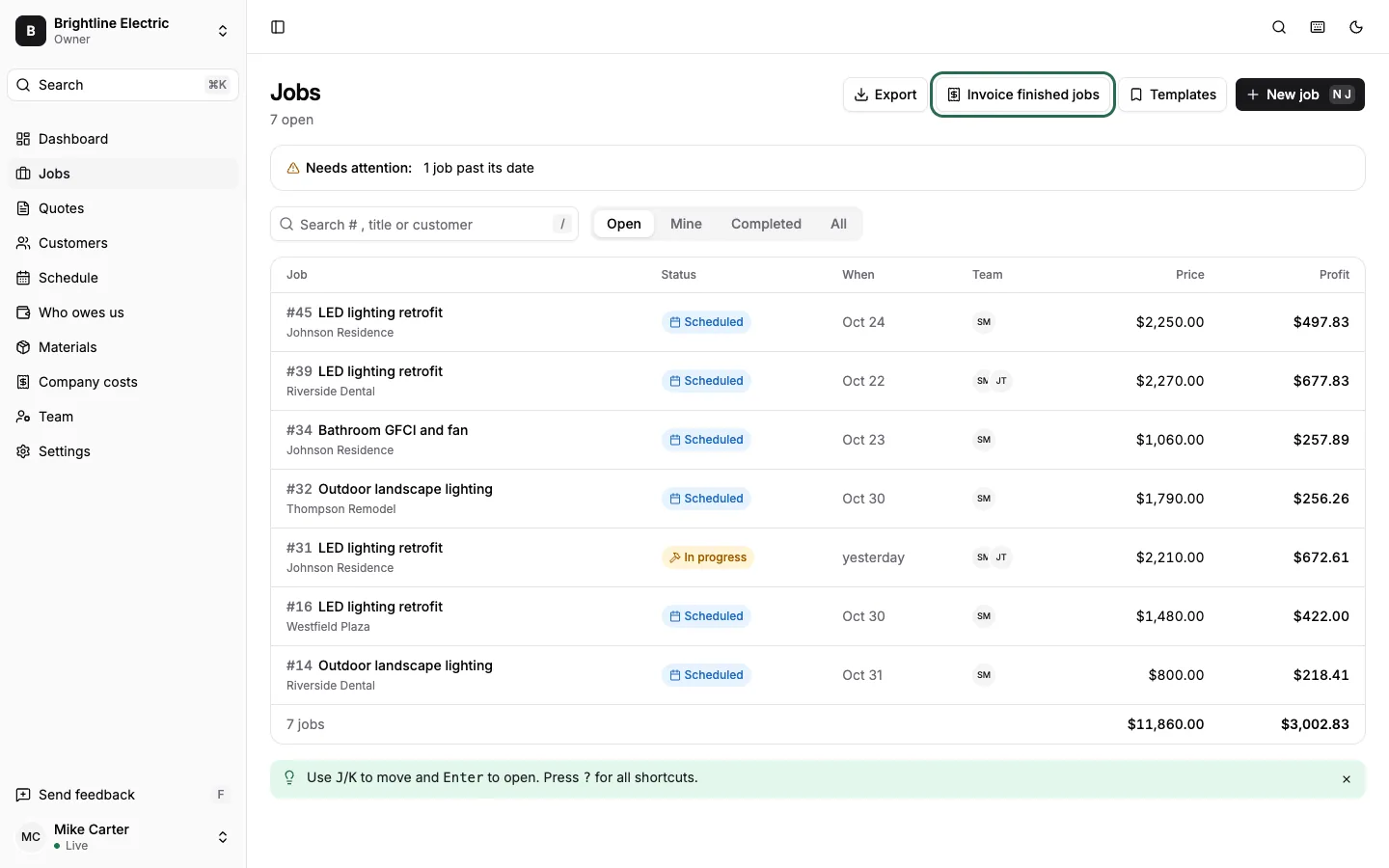
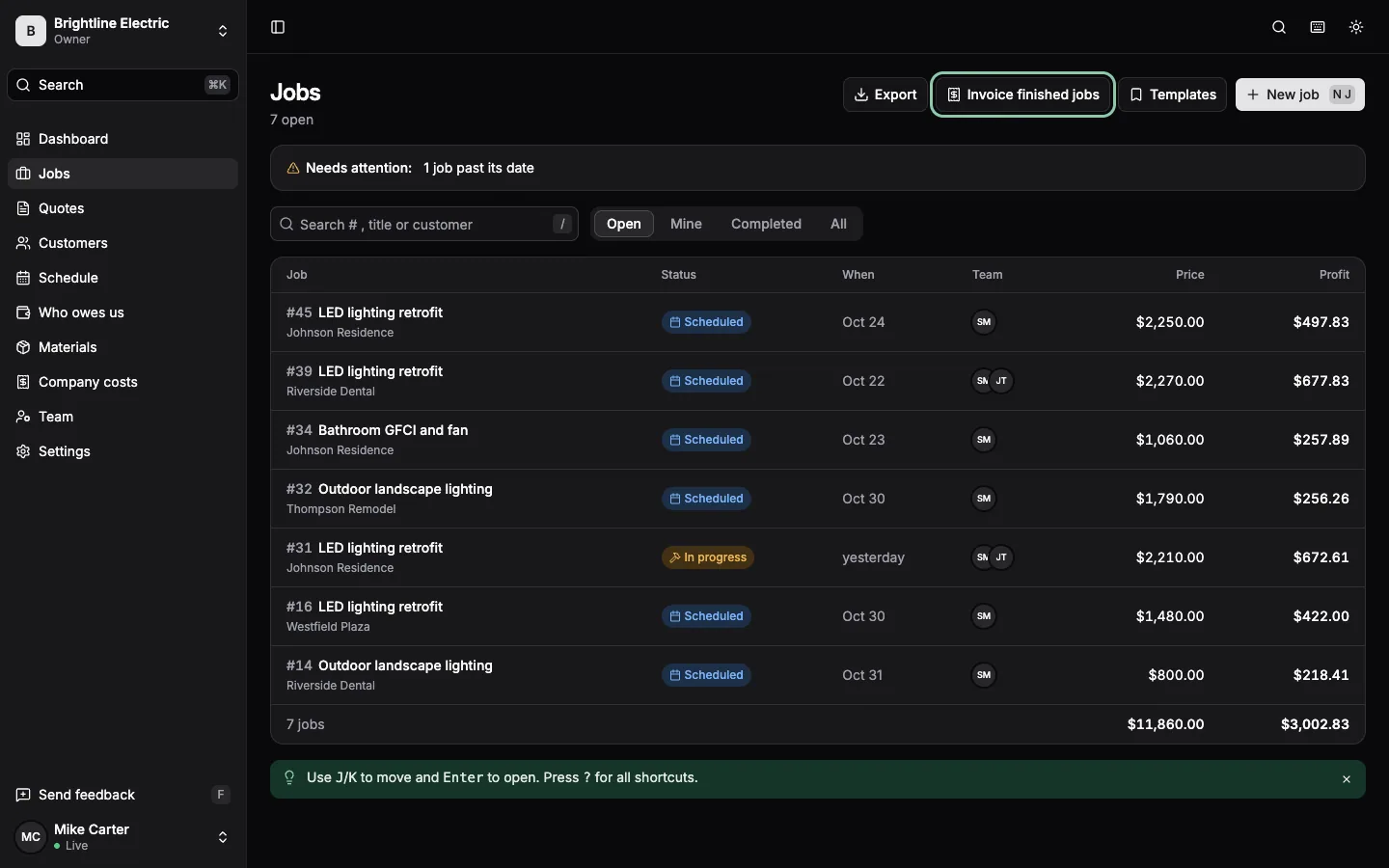
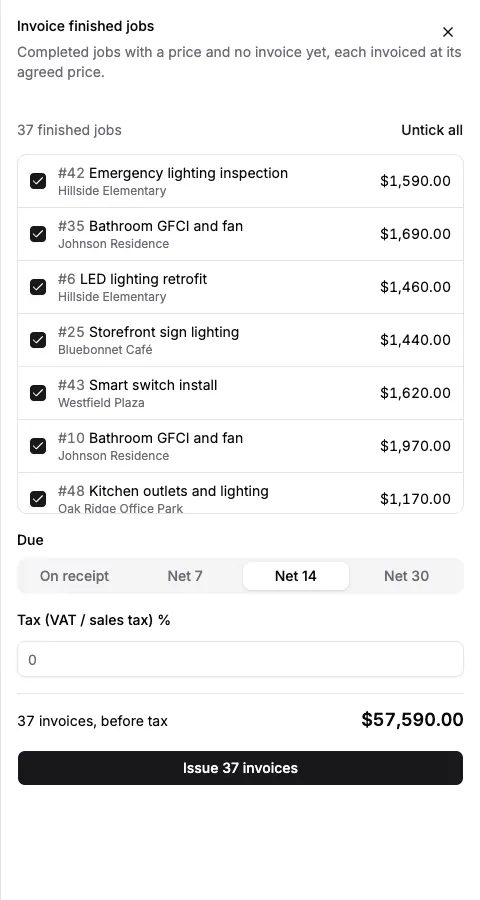
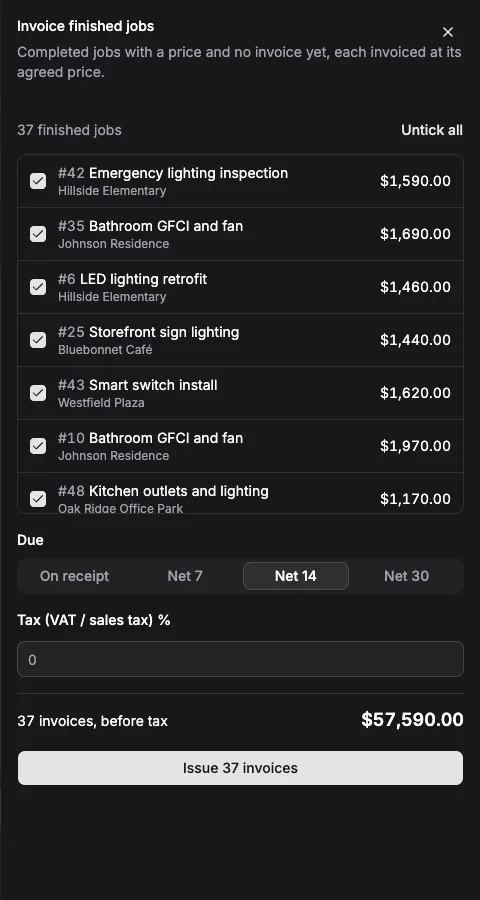
- Pick the jobs. Every finished job with a price and no invoice is ticked. Untick any you want to leave out.
Choose when they’re Due and the Tax (VAT / sales tax) %; these apply to all of them. Click Issue … invoices.
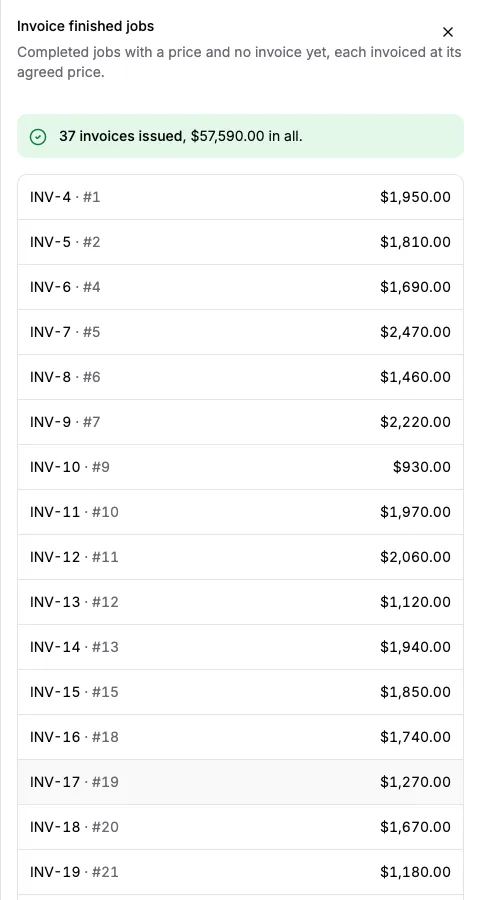
- Done. The sheet lists each new invoice with its job. Click one to open it.
Good to know
Section titled “Good to know”- The invoices aren’t sent. Open each one and click Send when you’re ready (how).
- A job shows up here when it’s completed, has an agreed price, and has no invoice at all. A job with a deposit or a stage invoice won’t appear; bill the rest from the job.
- Oldest finished jobs come first, up to 200 at a time.
- If someone else invoiced one of the jobs in the meantime, it’s skipped and the sheet says so.