

Photos and files on a job
- Who
- Owners, Office, Field workers
- Where
- A job → Photos and files → Add.
Take photos or add PDFs on the job. Everyone on the job sees them, marked before, during or after.
Why it’s there
Section titled “Why it’s there”Photos settle questions later: what was there before, what you left behind, where the cable runs. Drawings and permits on the job mean nobody has to ask the office for them.
Who sees it
Section titled “Who sees it”- Everyone who sees the job sees its photos and files.
- Anyone who works on the job can add them, also after it’s completed.
- The person who added a photo or file, or an owner, can remove it.
How to use it
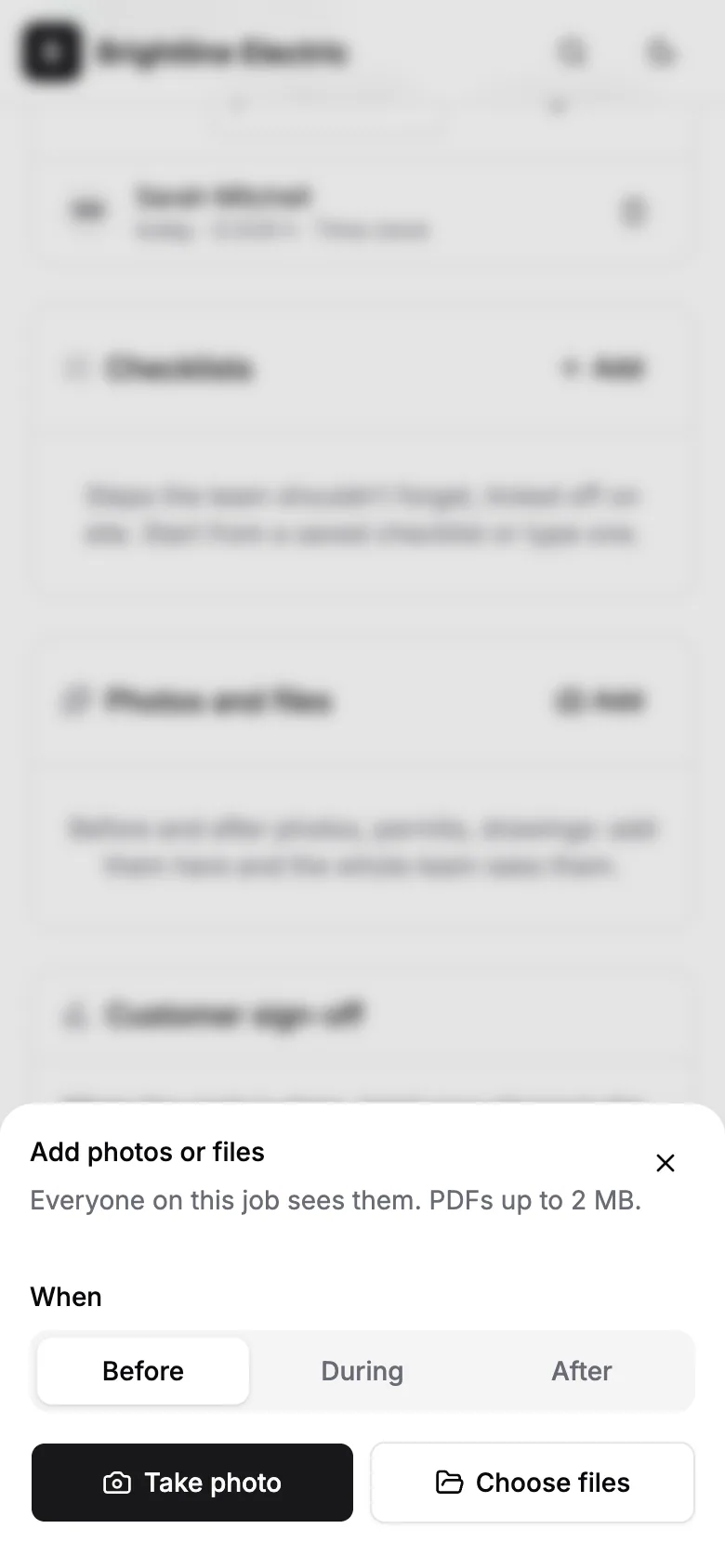
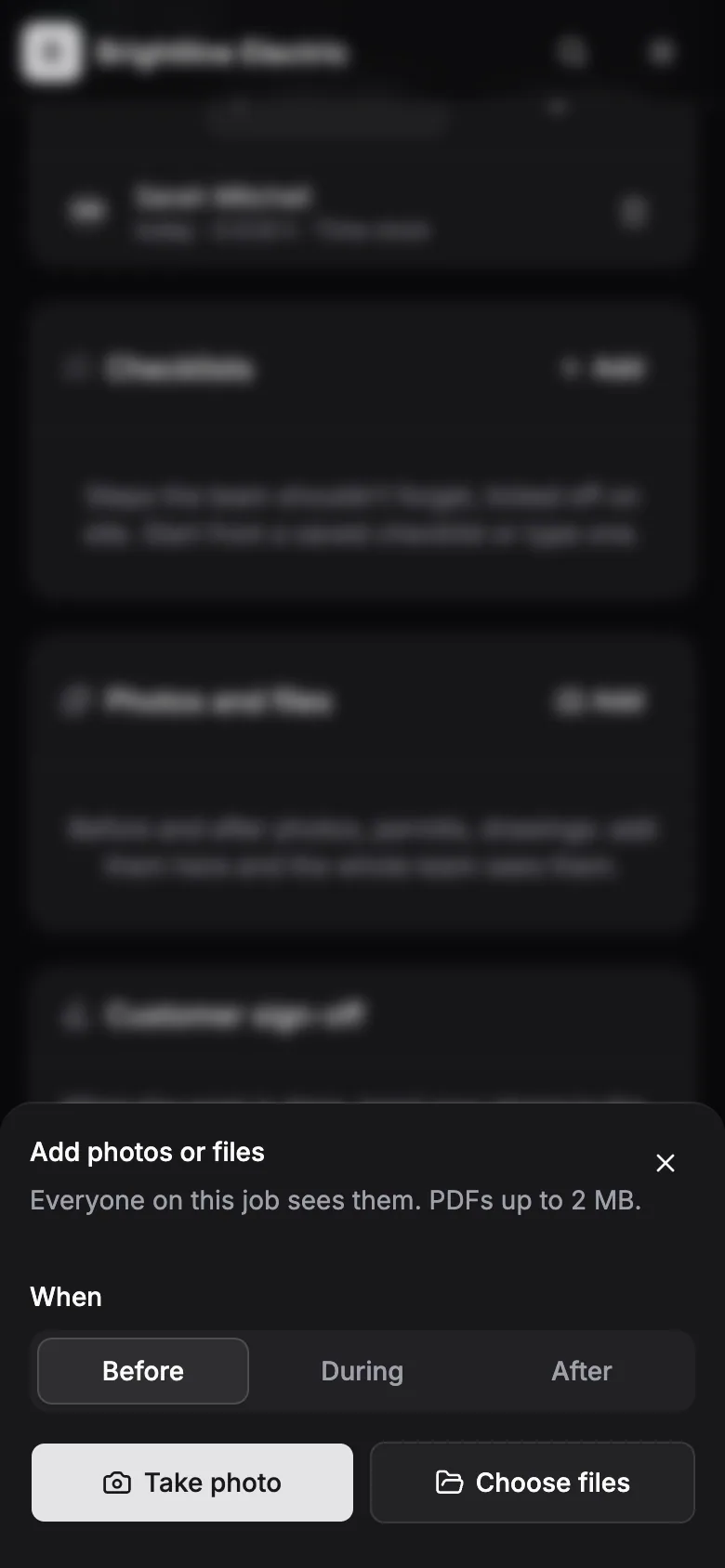
Section titled “How to use it”- Open the job. In Photos and files, tap Add. Pick When: Before, During or After (Skuadro picks
one from the job’s status). Then tap Take photo for the camera, or Choose files for photos and PDFs you
already have.
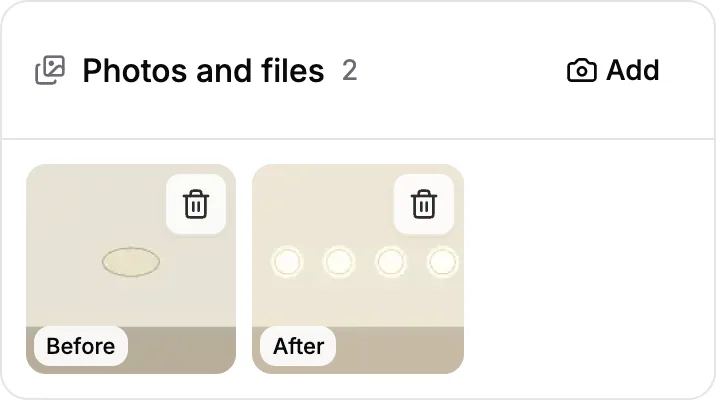
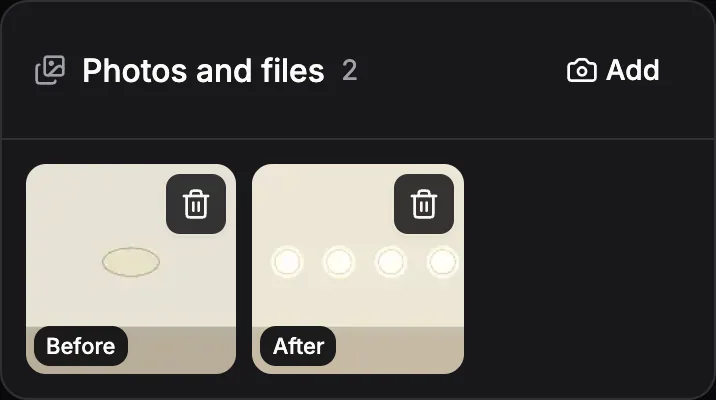
- The photos appear on the job, marked Before or After. Tap one to see it full size. PDFs are listed with their
size and who added them; tap to open.
Good to know
Section titled “Good to know”- Photos are made smaller on the phone before they’re sent, and the location stored in the photo is removed.
- PDFs up to 2 MB, and up to 300 files per job. A bigger PDF: save a smaller copy, or take photos of the pages.
- Photos need signal. With no signal they stay on your phone; add them when you’re back online.
- Removing one shows Undo for a few seconds.
- Owners get a notification when someone on the team adds a photo or file.