

Skuadro on a phone
- Who
- Owners, Office, Field workers
- Where
- Everywhere, on any phone. Nothing to install from a store.
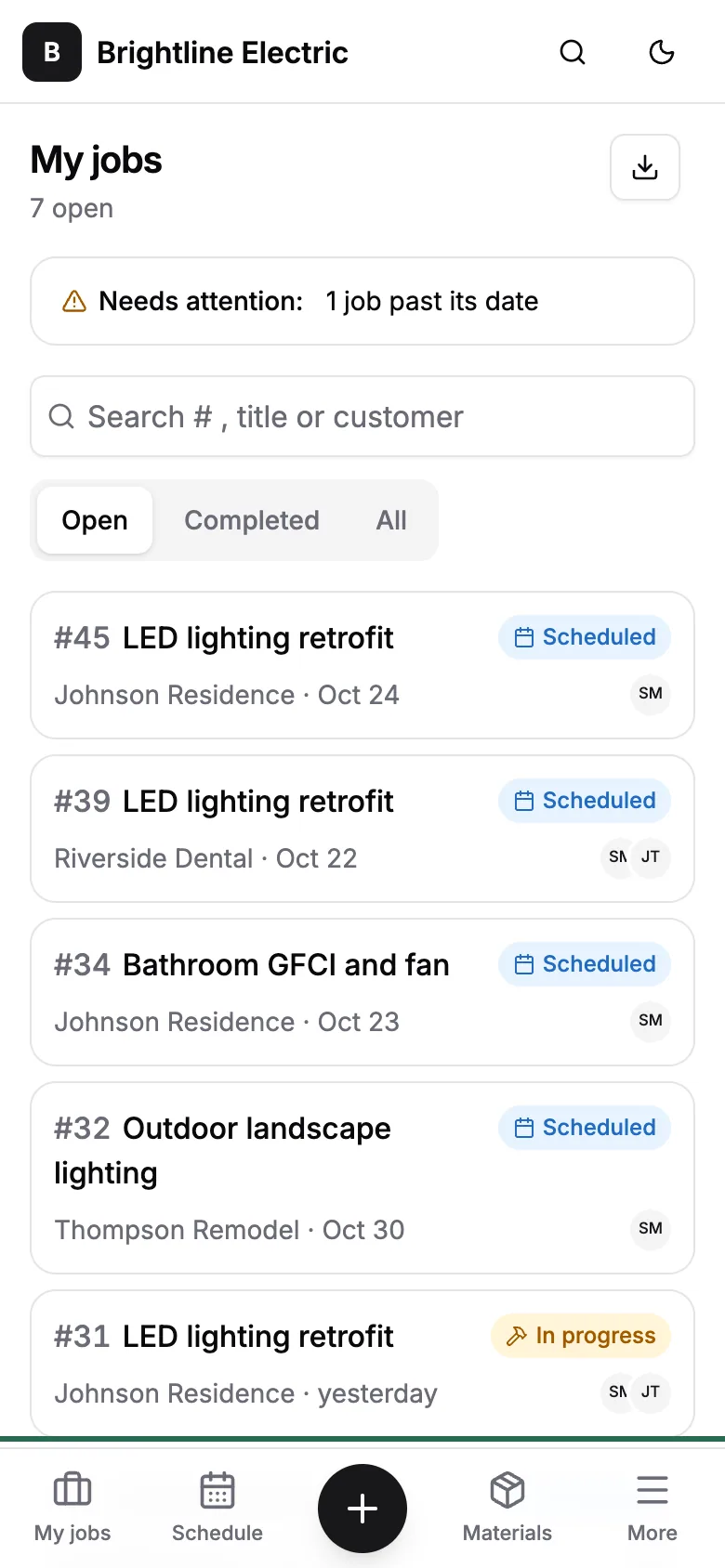
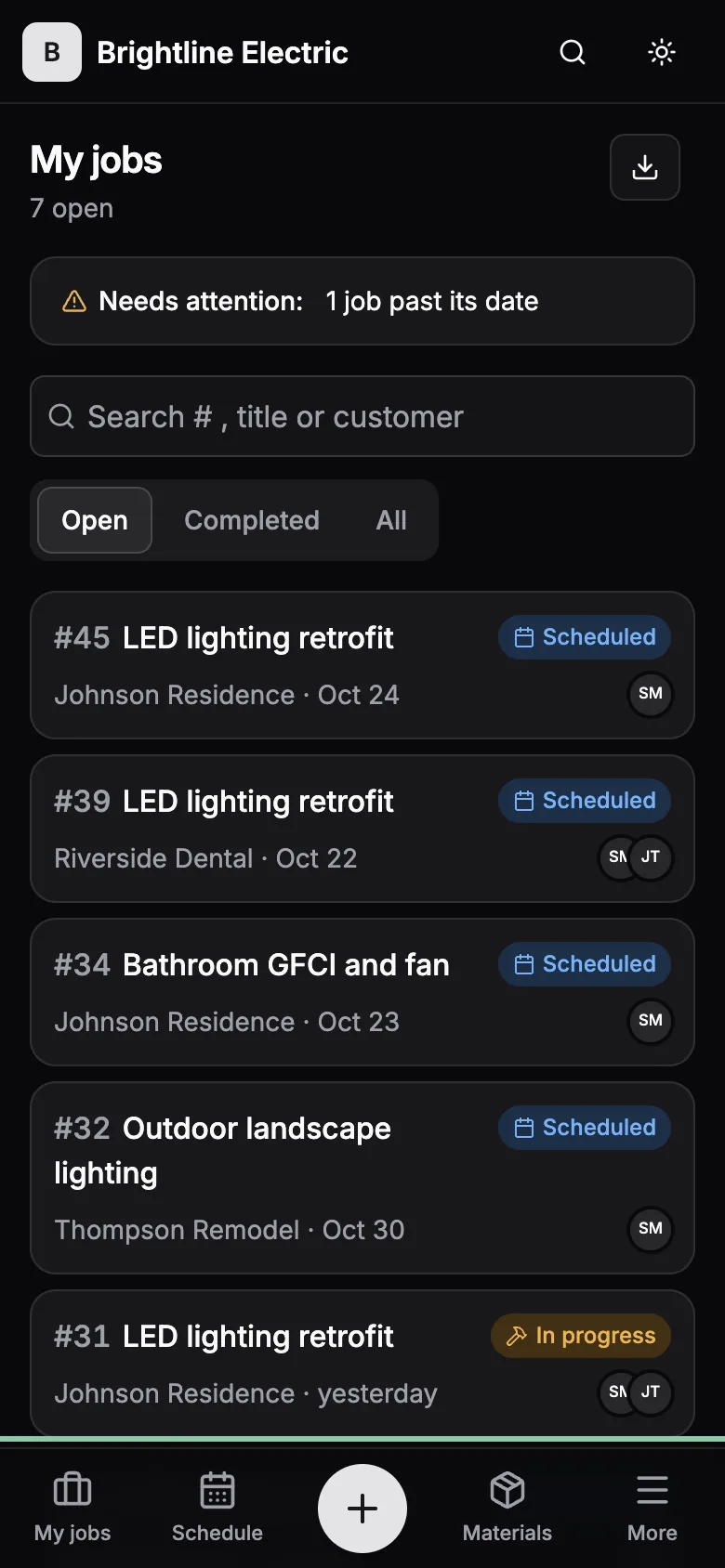
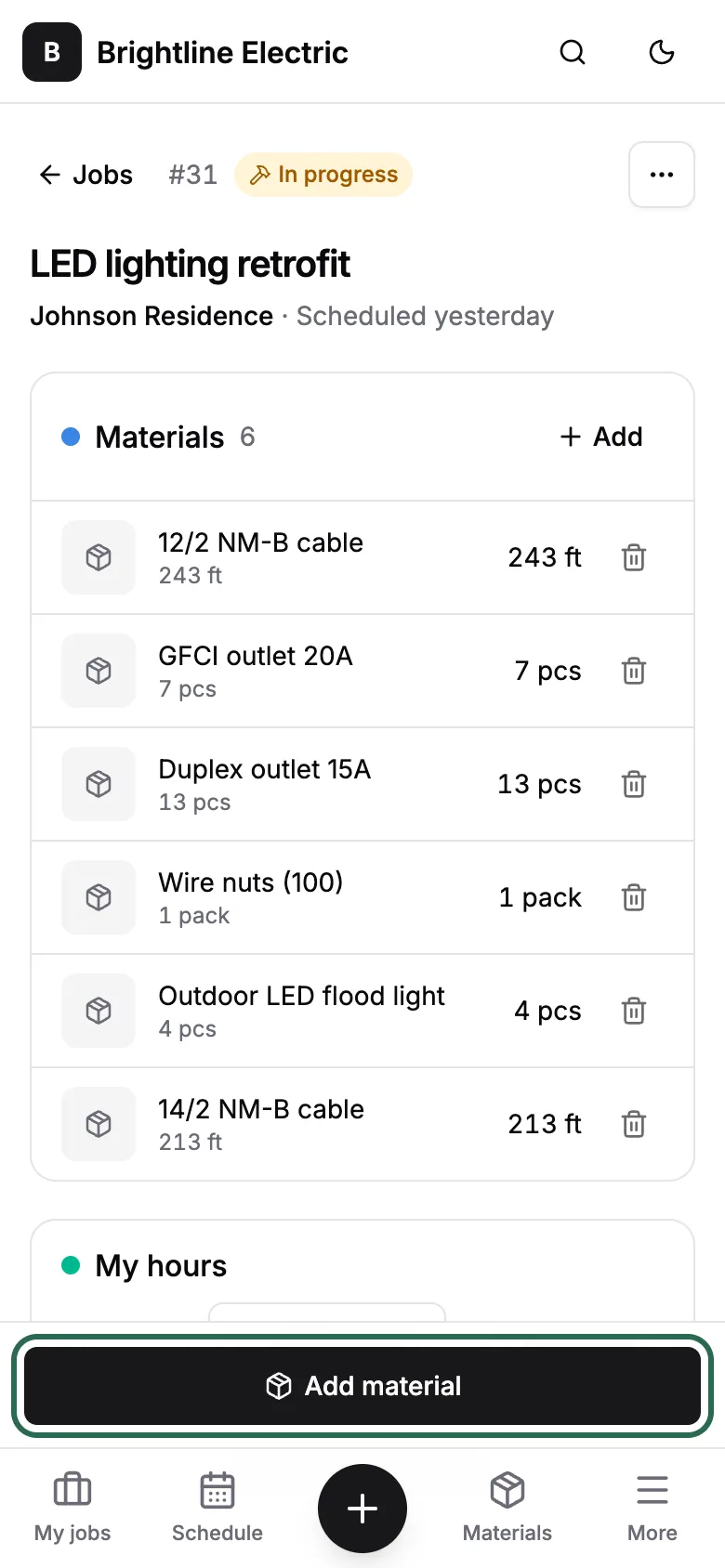
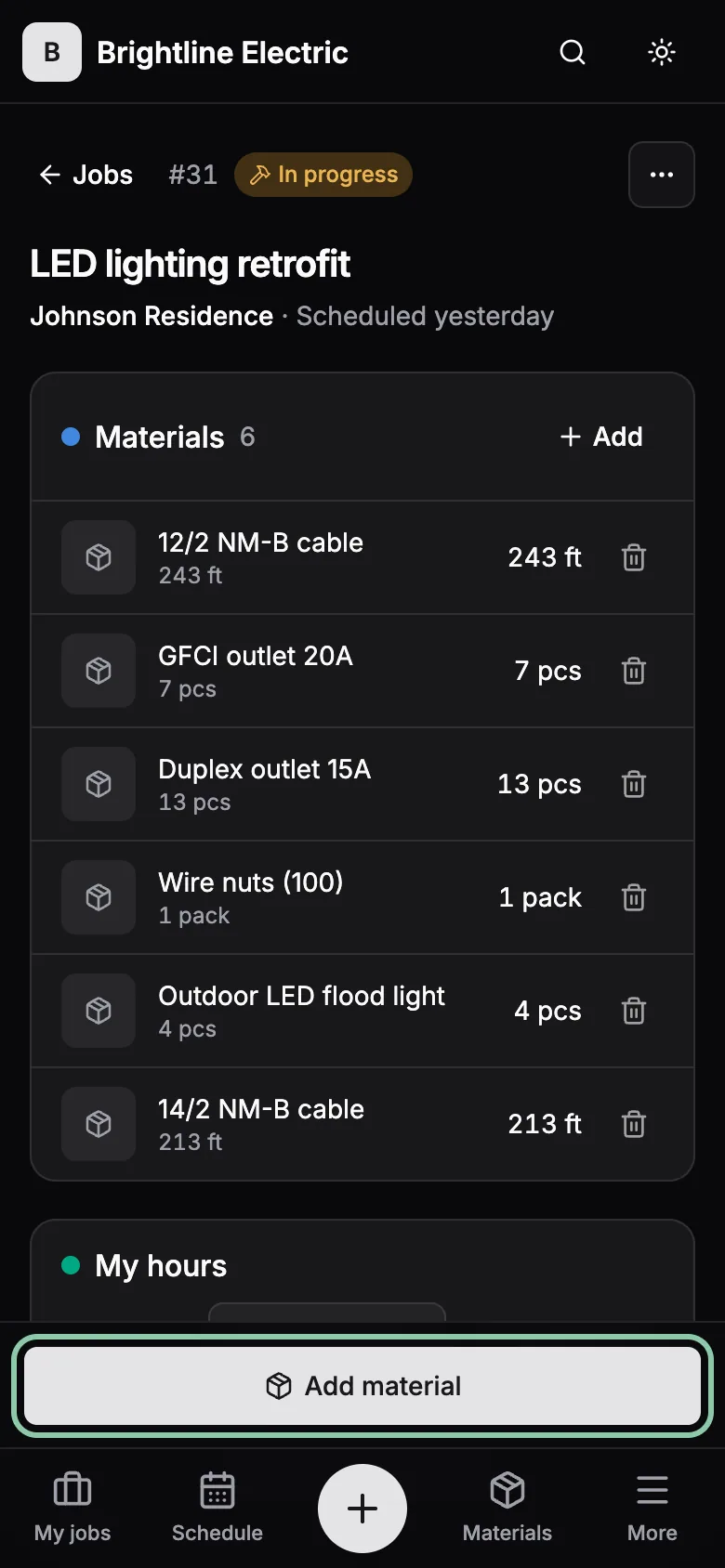
On a phone, Skuadro puts your most used screens at the bottom, a round + in the middle, and each job’s main action where your thumb is.
Why it’s there
Section titled “Why it’s there”Work on site happens on a phone, often with one free hand. Everything a crew does all day is one or two taps away, with buttons big enough to hit with gloves on.
Who sees it
Section titled “Who sees it”Everyone. What’s in the bottom bar and behind the + depends on what your role lets you do.
How to use it
Section titled “How to use it”- The bottom bar holds your first three screens, the + and More. A field worker sees My jobs,
Schedule and Materials; an owner sees Dashboard, Jobs and Quotes. More opens the full menu,
with Send feedback, the theme and Sign out.
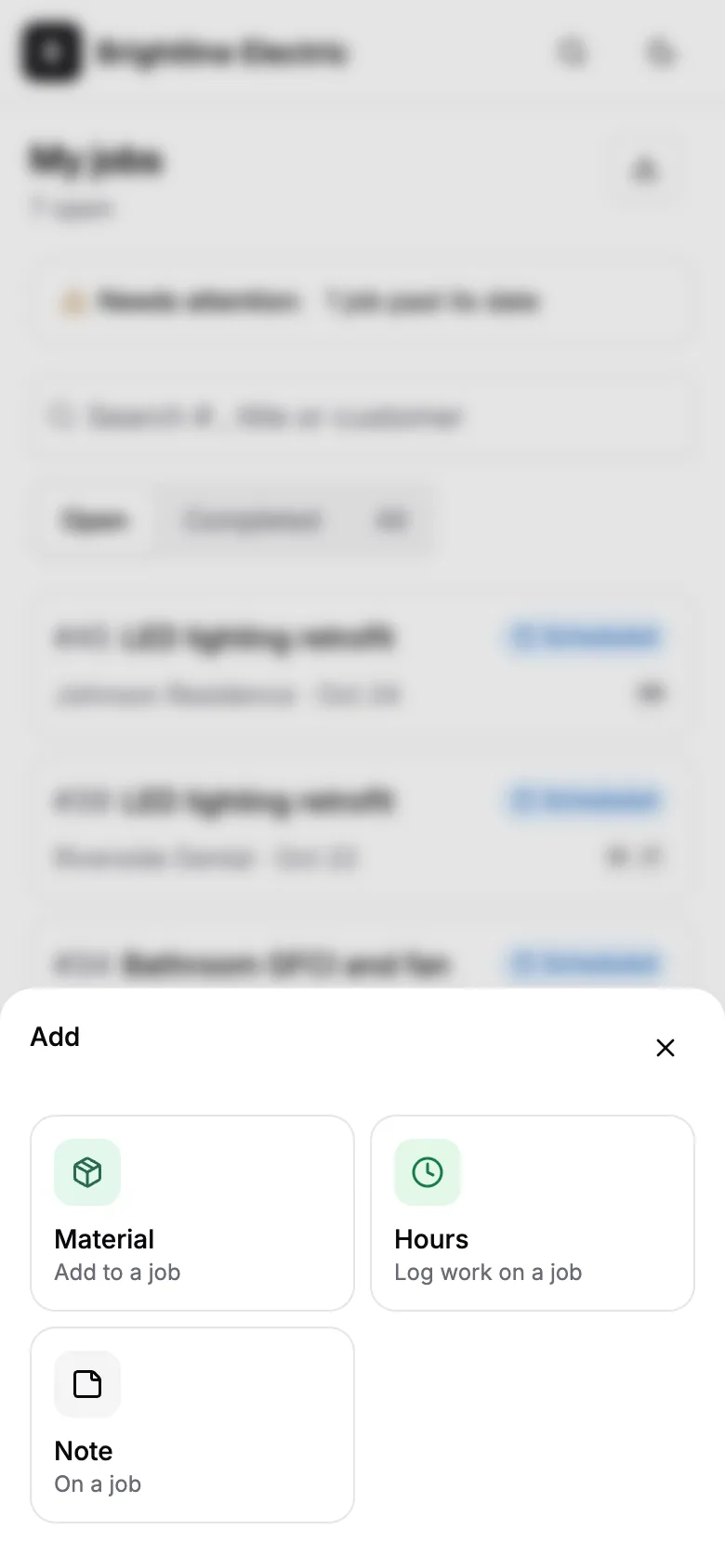
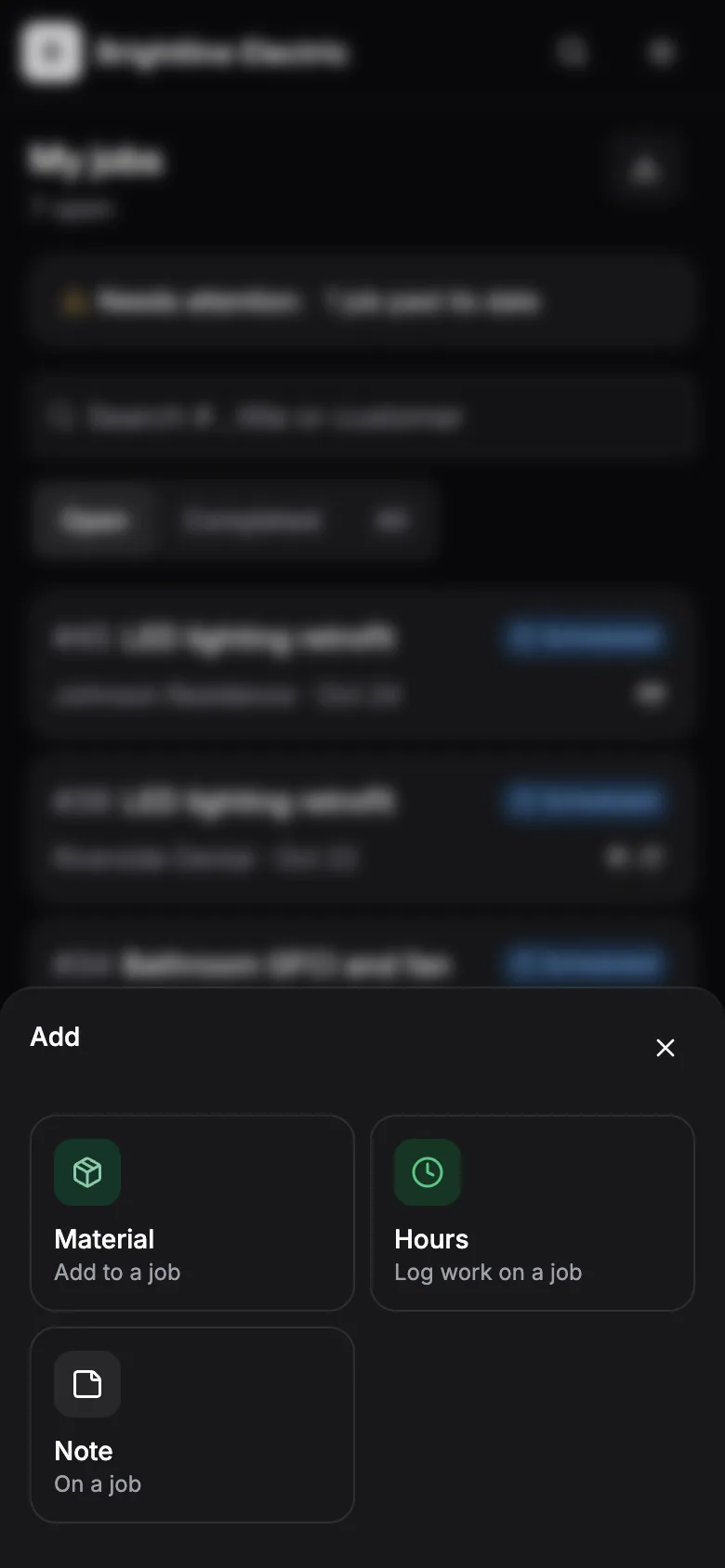
- The + (Quick add) adds what you do most to any job: a Material, Hours, a Note, and for those allowed,
an Expense, a Payment, a New job, a Quote or a Customer. Pick one, then pick the job.
- On a job, the main action waits at the bottom, usually Add material (on a completed job, where materials are
locked, it’s Record payment or Add note). Next to it, people who can move the job along get Start job or
Mark completed.
Keep it on your home screen
Section titled “Keep it on your home screen”Skuadro is a web app: open it in your phone’s browser and add it to your home screen, and it opens like any other app. See Install on a phone.
Good to know
Section titled “Good to know”- On touch screens buttons and fields are at least 44 points tall, so they’re easy to hit.
- Forms open as sheets from the bottom of the screen on a phone, and from the right on a computer.
- When a new version of Skuadro is ready, a message offers Reload.