

Receipts and other costs
- Who
- Owners, Office
- Where
- A job → Expenses → Add.
Fuel, a permit, a run to the supply store: add it to the job’s expenses with a photo of the receipt, so it counts in the job’s profit and the receipt is never lost.
Why it’s there
Section titled “Why it’s there”Receipts in a glovebox don’t count. Adding them to the job on the spot puts the cost in the right job’s profit, and the photo is there when the accountant asks.
Who sees it
Section titled “Who sees it”People whose role lets them add expenses: owners, the Office and Foreman roles. The preset Field worker role doesn’t see expenses; an owner can allow it for one person in Team.
How to use it
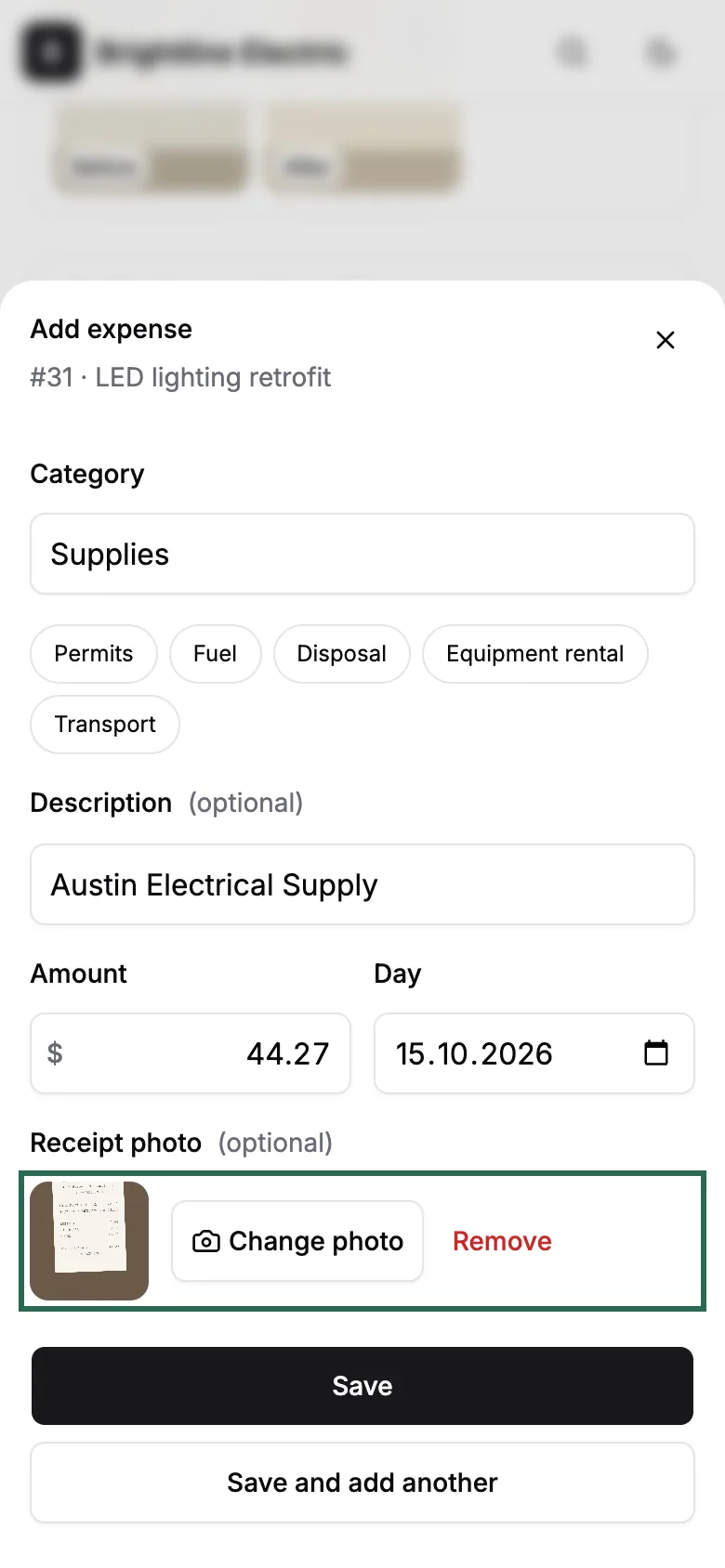
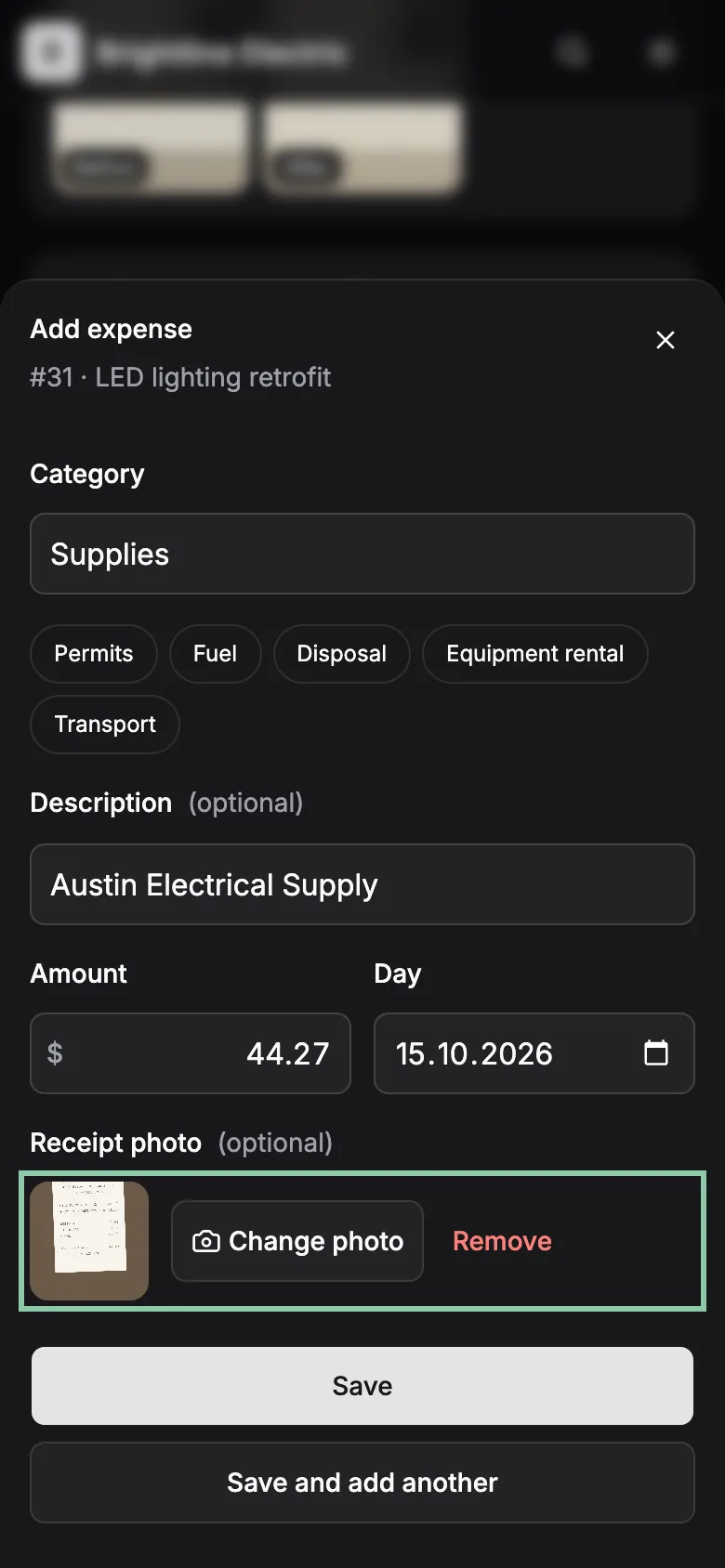
Section titled “How to use it”- Open the job. In Expenses, tap Add. Pick a Category (or type one), add a Description if you like,
type the Amount and check the Day. Under Receipt photo, tap Add photo and take or pick the picture.
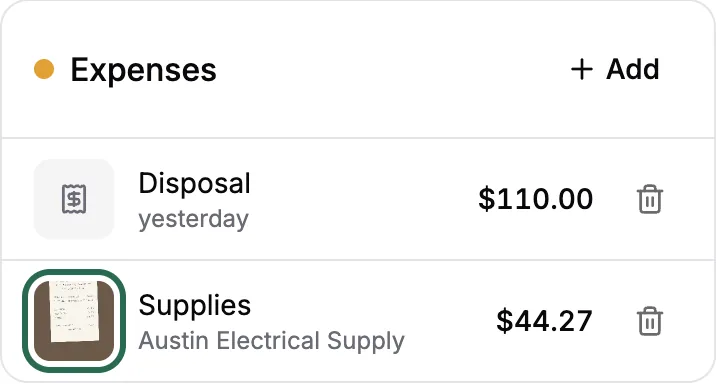
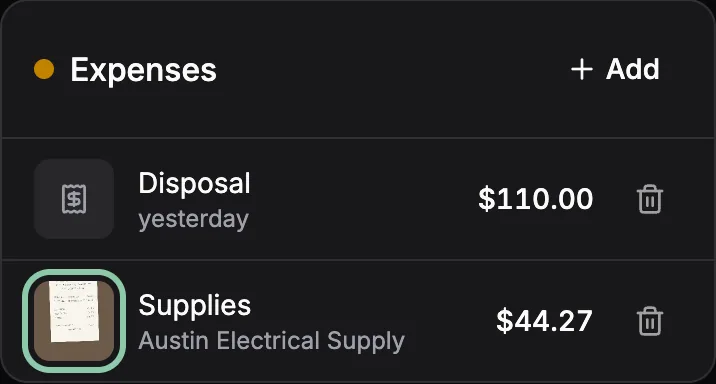
- Tap Save. The expense shows with a small picture of the receipt; tap it to see it full size.
Good to know
Section titled “Good to know”- Receipt photos are made smaller on the phone, and the location stored in the photo is removed.
- Removing an expense shows Undo for a few seconds, and brings the photo back too.
- With no signal, the expense is sent later but its photo isn’t: add the photo when you’re back online.
- Completed jobs are locked; reopen the job to add an expense.
- The amount takes sums:
18.50+25.77(how).