

Record a payment
- Who
- Owners
- Where
- A job → Payments → Record (on a phone, Record payment at the bottom).
When money comes in, record it on the job. Part payments add up, and the job’s invoices update by themselves.
Why it’s there
Section titled “Why it’s there”“Did they pay?” should have one answer for everyone. Recording payments on the job keeps the job, its invoices, Who owes you and your profit figures in step.
Who sees it
Section titled “Who sees it”Owners, and people whose role lets them record payments (Accountant). Field workers and the Office role don’t see payments.
How to use it
Section titled “How to use it”- Open the job. In Payments, click Record. On a phone, the button at the bottom says Record payment while
something is still owed.
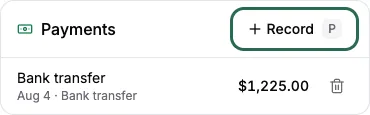
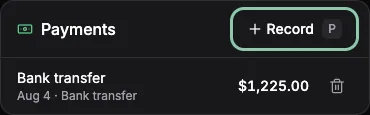
- The Amount is filled in with what’s still outstanding; change it for a part payment (you can type sums like
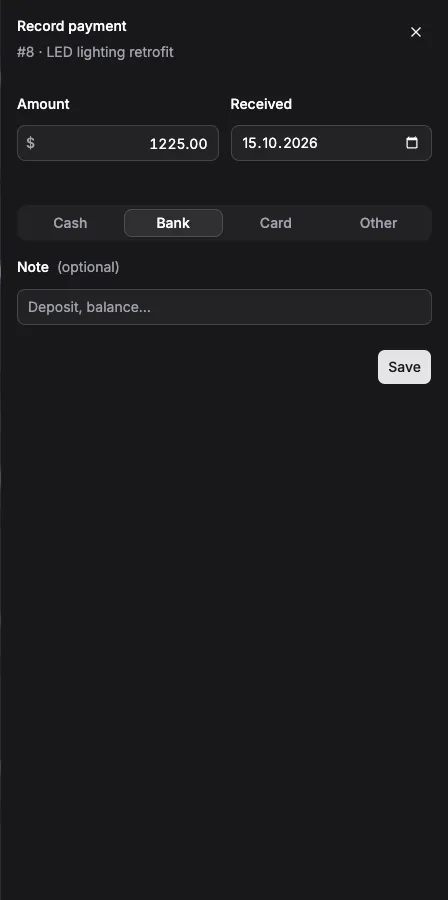
600+625). Pick the day it was Received, how it was paid (Cash, Bank, Card or Other) and add a note if you like. Click Save.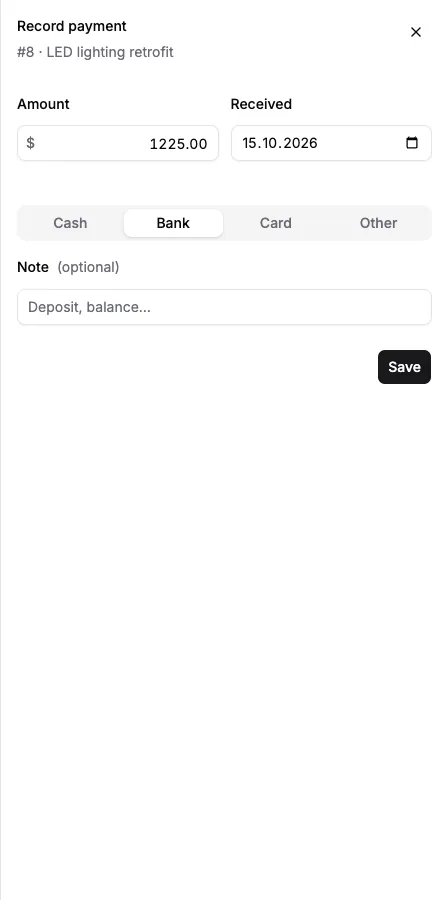
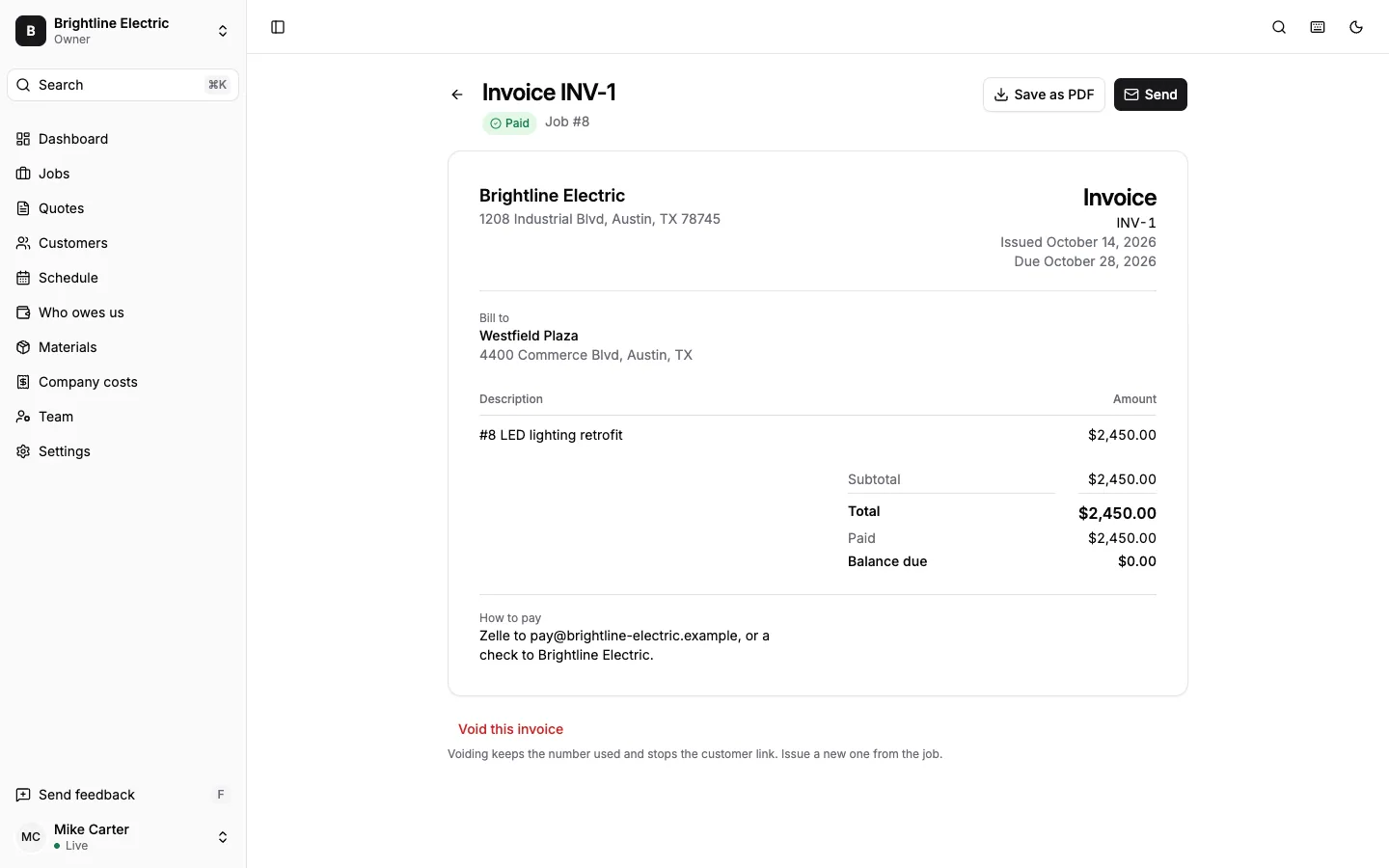
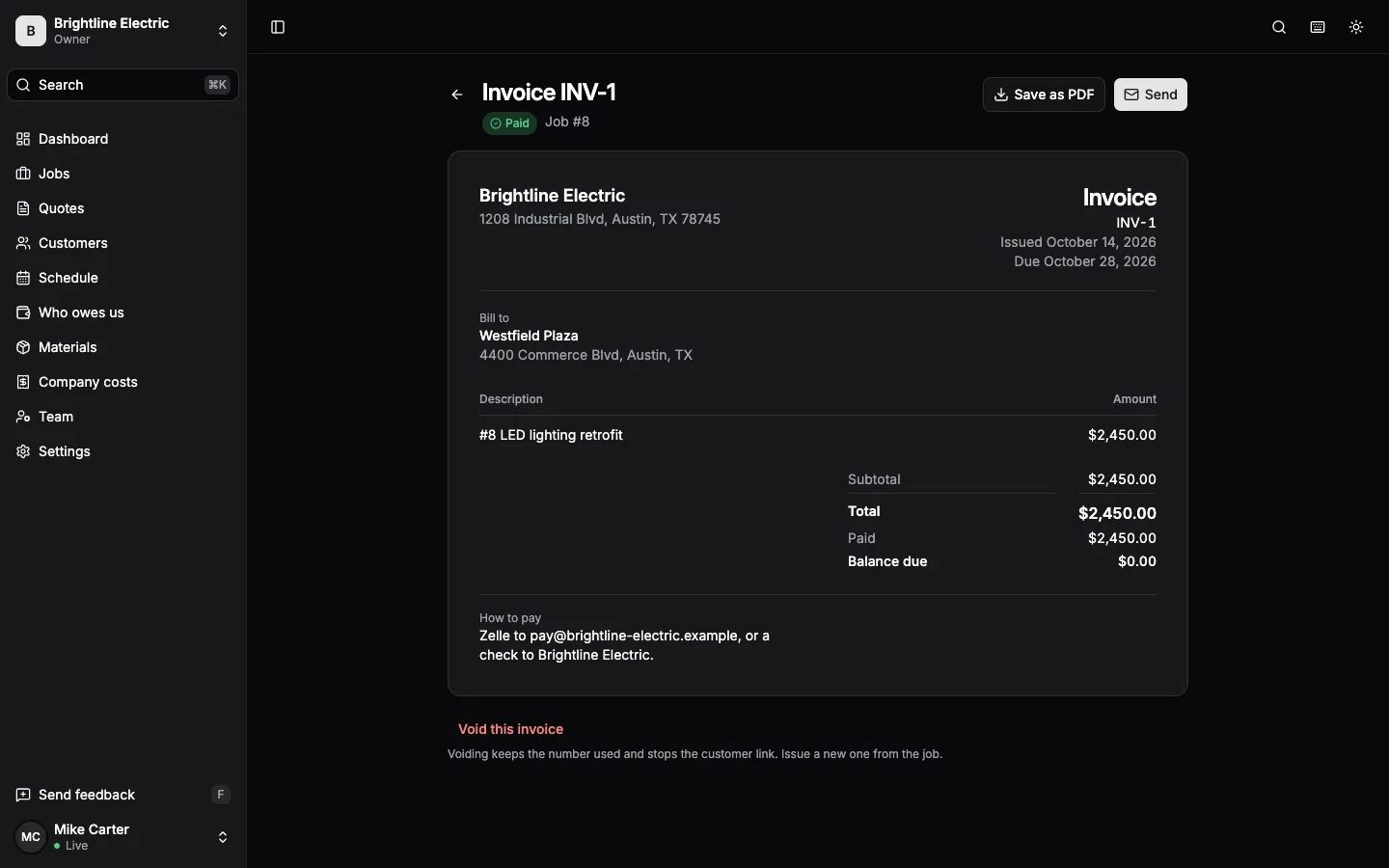
- The job’s invoices count the payment. Once they’re covered, the invoice shows Paid.
Good to know
Section titled “Good to know”- Payments go against the job’s invoices oldest first.
- Tax: the job’s “Outstanding” is the agreed price minus payments, before tax. If you charged tax on the invoice, the invoice still shows the tax as Balance due until that’s paid too.
- You can record payments on finished and cancelled jobs.
- Removing a payment shows Undo for a few seconds.
- Payments need a connection; they aren’t saved offline.